---
title: "Elasticsearch"
description: "Learn how to dynamically generate Elasticsearch user credentials."
---
The Infisical Elasticsearch dynamic secret allows you to generate Elasticsearch credentials on demand based on configured role.
## Prerequisites
1. Create a role with at least `manage_security` and `monitor` permissions.
2. Assign the newly created role to your API key or user that you'll use later in the dynamic secret configuration.
For testing purposes, you can also use a highly privileged role like
`superuser`, that will have full control over the cluster. This is not
recommended in production environments following the principle of least
privilege.
## Set up Dynamic Secrets with Elasticsearch
Open the Secret Overview dashboard and select the environment in which you would like to add a dynamic secret.
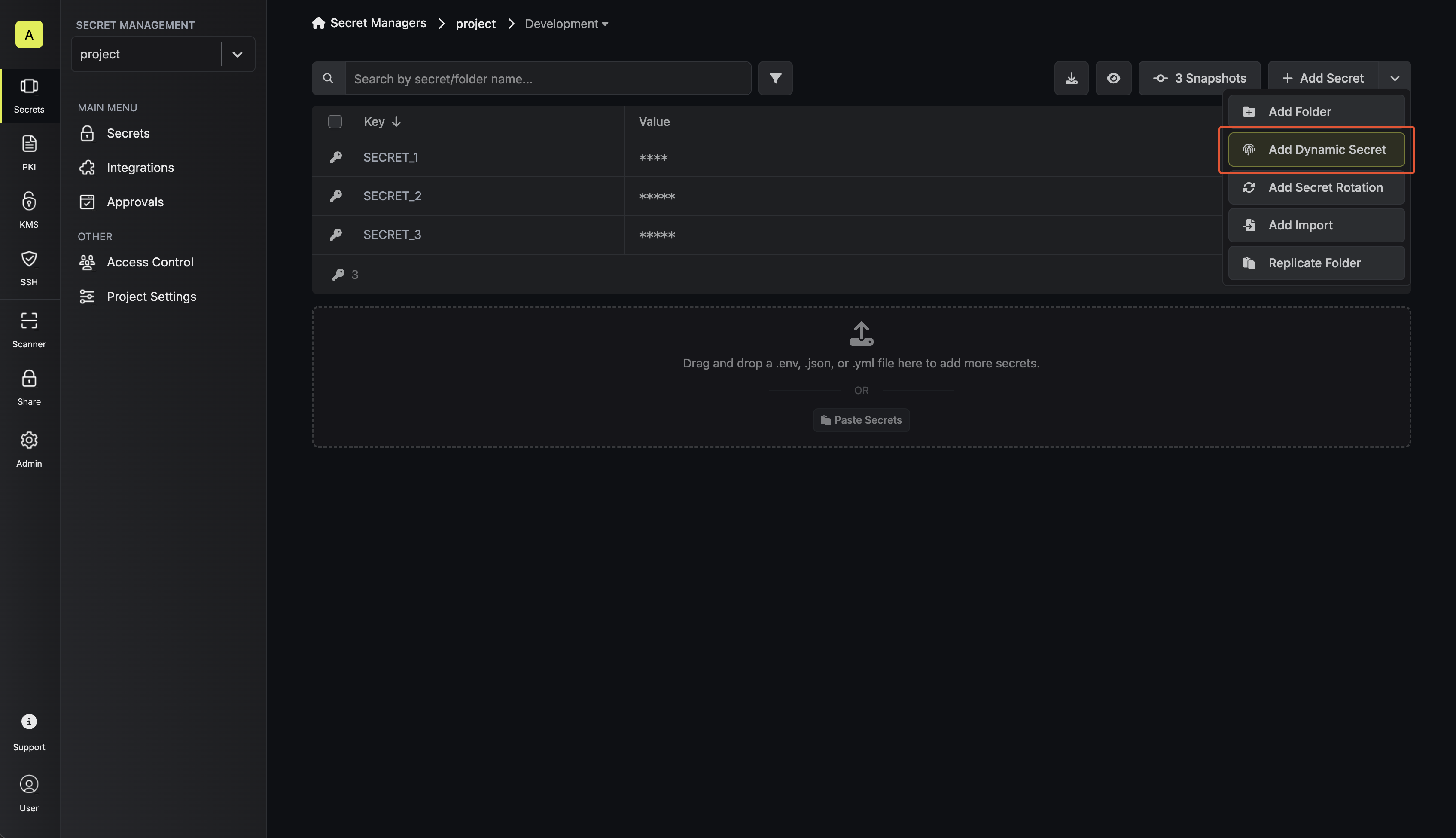
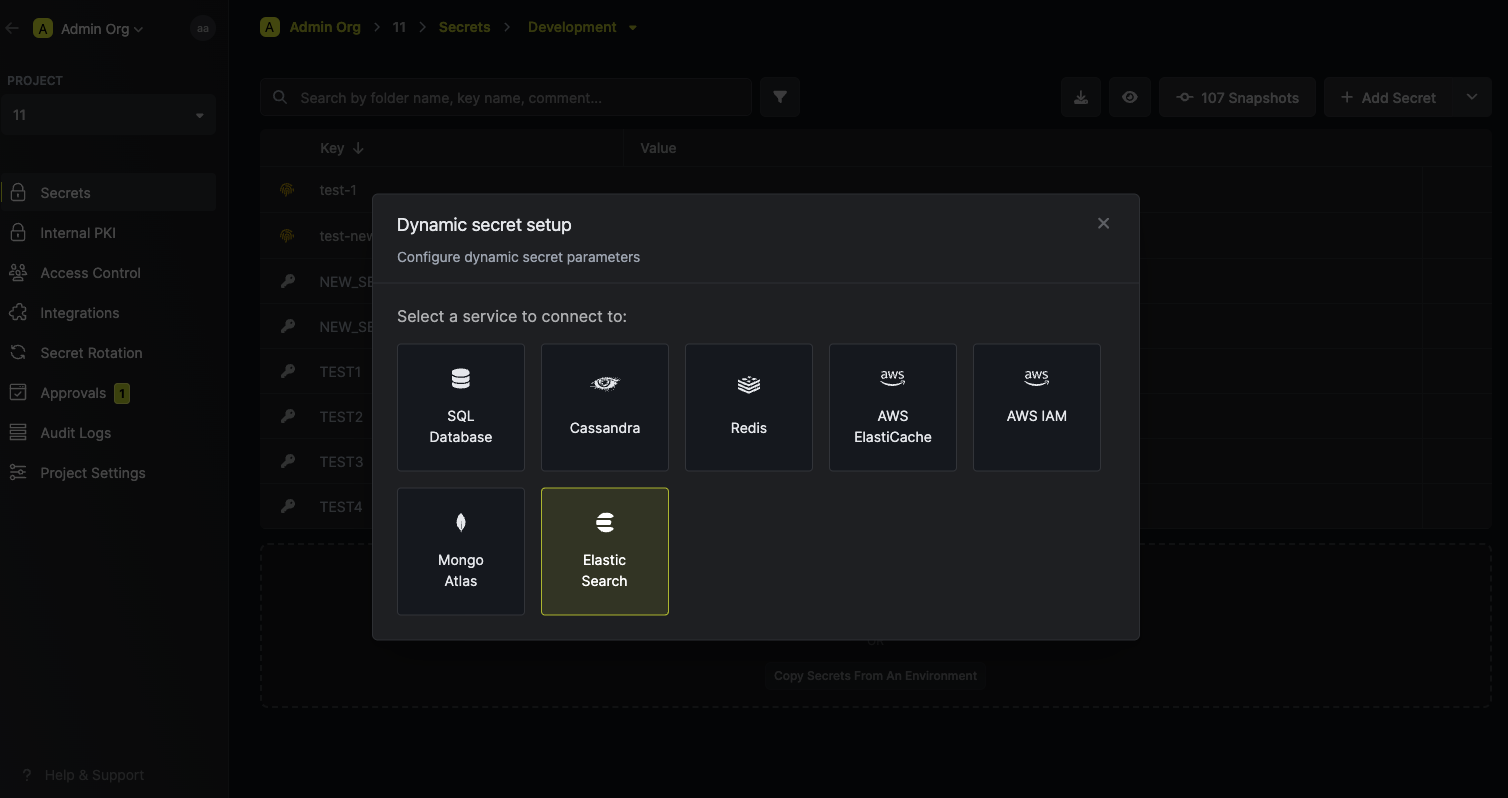
Name by which you want the secret to be referenced
Default time-to-live for a generated secret (it is possible to modify this value after a secret is generated)
Maximum time-to-live for a generated secret.
Your Elasticsearch host. This is the endpoint that your instance runs on. _(Example: https://your-cluster-ip)_
The port that your Elasticsearch instance is running on. _(Example: 9200)_
The roles that the new user that is created when a lease is provisioned will
be assigned to. This is a required field. This defaults to `superuser`, which
is highly privileged. It is recommended to create a new role with the least
privileges required for the lease.
Select the authentication method you want to use to connect to your Elasticsearch instance.
The username of the user that will be used to provision new dynamic secret
leases. Only required if you selected the `Username/Password` authentication
method.
The password of the user that will be used to provision new dynamic secret
leases. Only required if you selected the `Username/Password` authentication
method.
The ID of the API key that will be used to provision new dynamic secret
leases. Only required if you selected the `API Key` authentication method.
The API key that will be used to provision new dynamic secret leases. Only
required if you selected the `API Key` authentication method.
A CA may be required if your DB requires it for incoming connections. This is often the case when connecting to a managed service.
Specifies a template for generating usernames. This field allows customization of how usernames are automatically created.
Allowed template variables are
- `{{randomUsername}}`: Random username string
- `{{unixTimestamp}}`: Current Unix timestamp
- `{{identity.name}}`: Name of the identity that is generating the secret
- `{{random N}}`: Random string of N characters
Allowed template functions are
- `truncate`: Truncates a string to a specified length
- `replace`: Replaces a substring with another value
Examples:
```
{{randomUsername}} // 3POnzeFyK9gW2nioK0q2gMjr6CZqsRiX
{{unixTimestamp}} // 17490641580
{{identity.name}} // testuser
{{random-5}} // x9k2m
{{truncate identity.name 4}} // test
{{replace identity.name 'user' 'replace'}} // testreplace
```
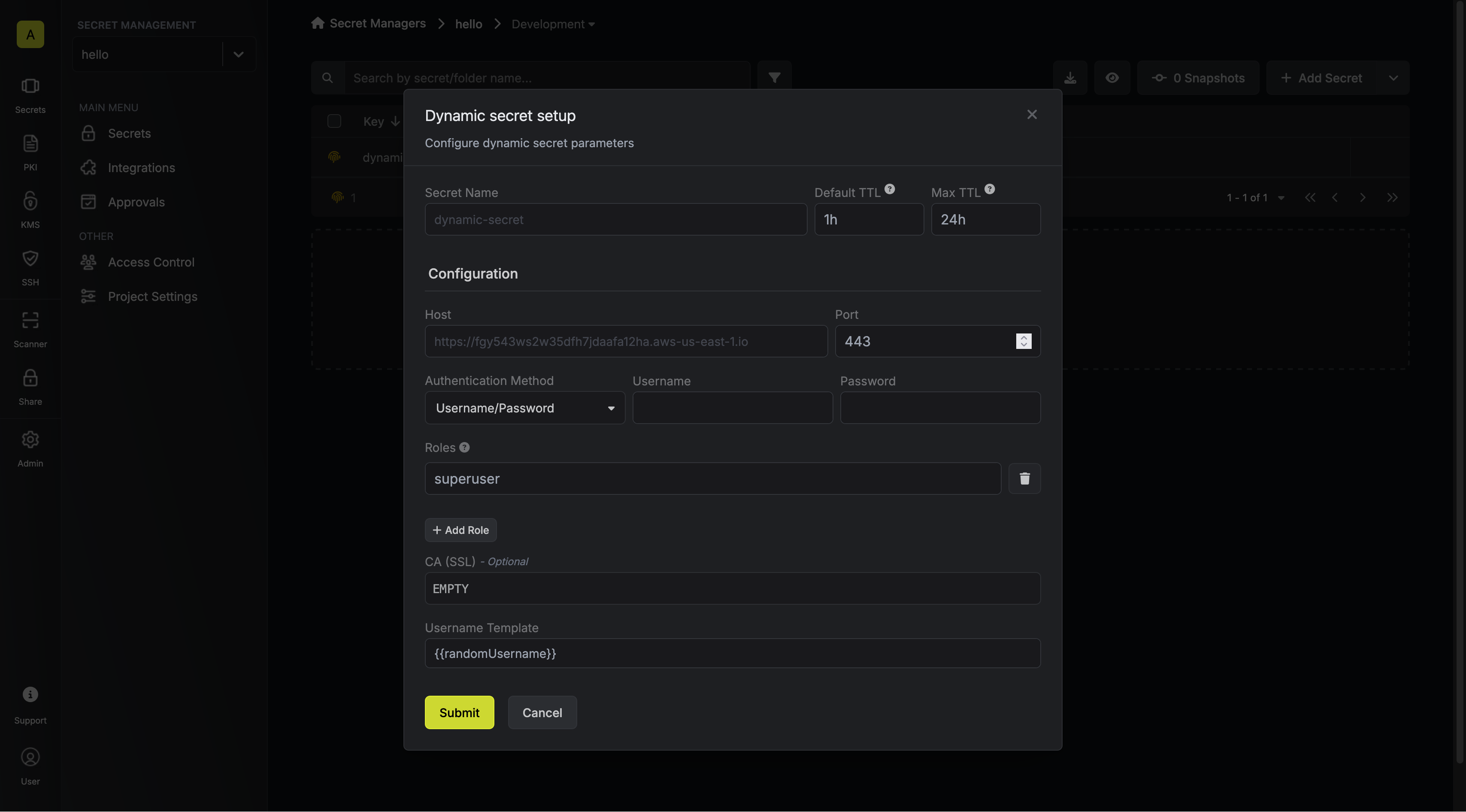
After submitting the form, you will see a dynamic secret created in the dashboard.
If this step fails, you may have to add the CA certificate.
Once you've successfully configured the dynamic secret, you're ready to generate on-demand credentials.
To do this, simply click on the 'Generate' button which appears when hovering over the dynamic secret item.
Alternatively, you can initiate the creation of a new lease by selecting 'New Lease' from the dynamic secret lease list section.


When generating these secrets, it's important to specify a Time-to-Live (TTL) duration. This will dictate how long the credentials are valid for.

Ensure that the TTL for the lease falls within the maximum TTL defined when configuring the dynamic secret.
Once you click the `Submit` button, a new secret lease will be generated and the credentials from it will be shown to you.

## Audit or Revoke Leases
Once you have created one or more leases, you will be able to access them by clicking on the respective dynamic secret item on the dashboard.
This will allow you to see the expiration time of the lease or delete a lease before it's set time to live.

## Renew Leases
To extend the life of the generated dynamic secret leases past its initial time to live, simply click on the **Renew** button as illustrated below.

Lease renewals cannot exceed the maximum TTL set when configuring the dynamic
secret