---
title: "AWS CloudHSM"
description: "Learn how to manage encryption using AWS CloudHSM"
---
This guide provides instructions on securing Infisical project secrets using AWS CloudHSM.
Integration with AWS CloudHSM is achieved by configuring it as a custom key store for AWS KMS.
Follow the steps below to set up AWS KMS with AWS CloudHSM as the custom key store.
## Prepare AWS CloudHSM Cluster
Before you get started, you'll need to configure a AWS CloudHSM cluster which meets the following criteria:
- The cluster must be active.
- The cluster must not be associated with any other AWS KMS custom key store.
- The cluster must be configured with private subnets in at least two Availability Zones in the Region.
- The security group for the cluster must include inbound and outbound rules that allow TCP traffic on ports 2223-2225.
- The cluster must contain at least two active HSMs in different Availability Zones.
For more details on setting up your cluster, refer to the following [AWS documentation](https://docs.aws.amazon.com/kms/latest/developerguide/create-keystore.html#before-keystore).
## Set Up AWS KMS Custom Key Store
To set up an AWS KMS custom key store with AWS CloudHSM, you will need the following:
- The trust anchor certificate of your AWS CloudHSM cluster.
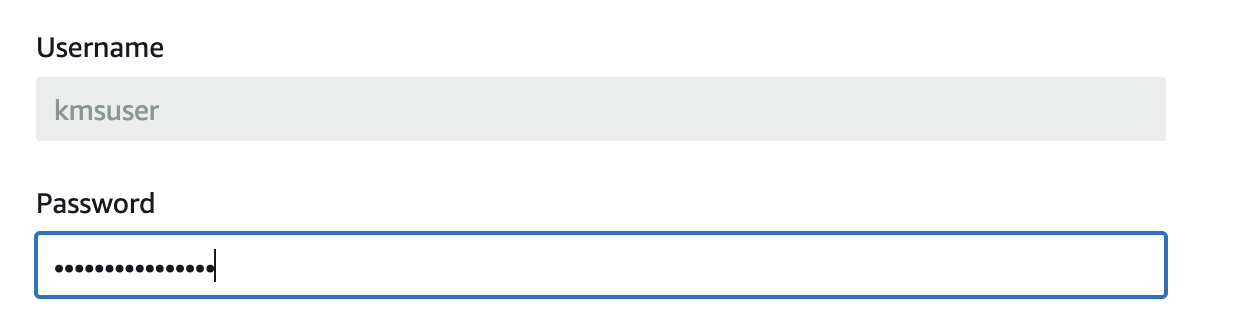
- A `kmsuser` user in the AWS CloudHSM cluster with the crypto-user role.
In the AWS console, head over to `AWS KMS` > `AWS CloudHSM key stores` and click **Create key store**.
Input the custom key store name. 
Select the AWS CloudHSM cluster. You should be able to select the cluster if it meets the required criteria mentioned above.

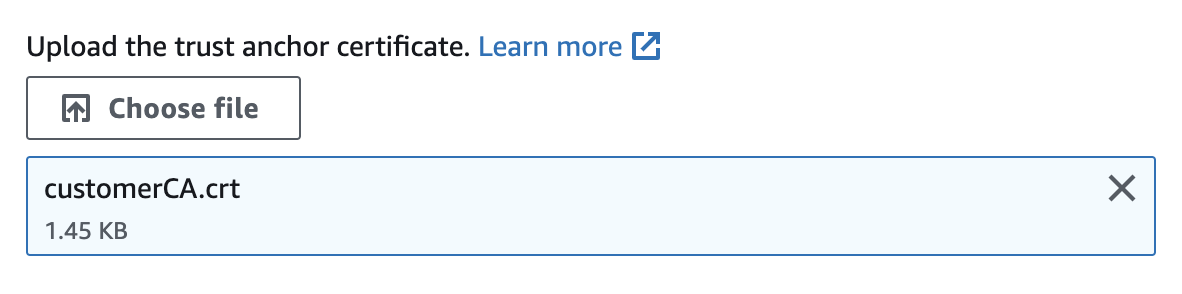
Upload your CloudHSM's cluster trust anchor certificate file.
Input the password of the `kmsuser` crypto-user in your cluster.
Proceed with creating the AWS CloudHSM key store.
For more details, refer to the following [AWS documentation](https://docs.aws.amazon.com/kms/latest/developerguide/create-keystore.html#create-keystore-console).
## Create AWS KMS Key
Next, you'll need to create a AWS KMS key where you will set the key store you created previously.
In your AWS console, proceed to `AWS KMS` > `Customer managed keys` and click **Create**.
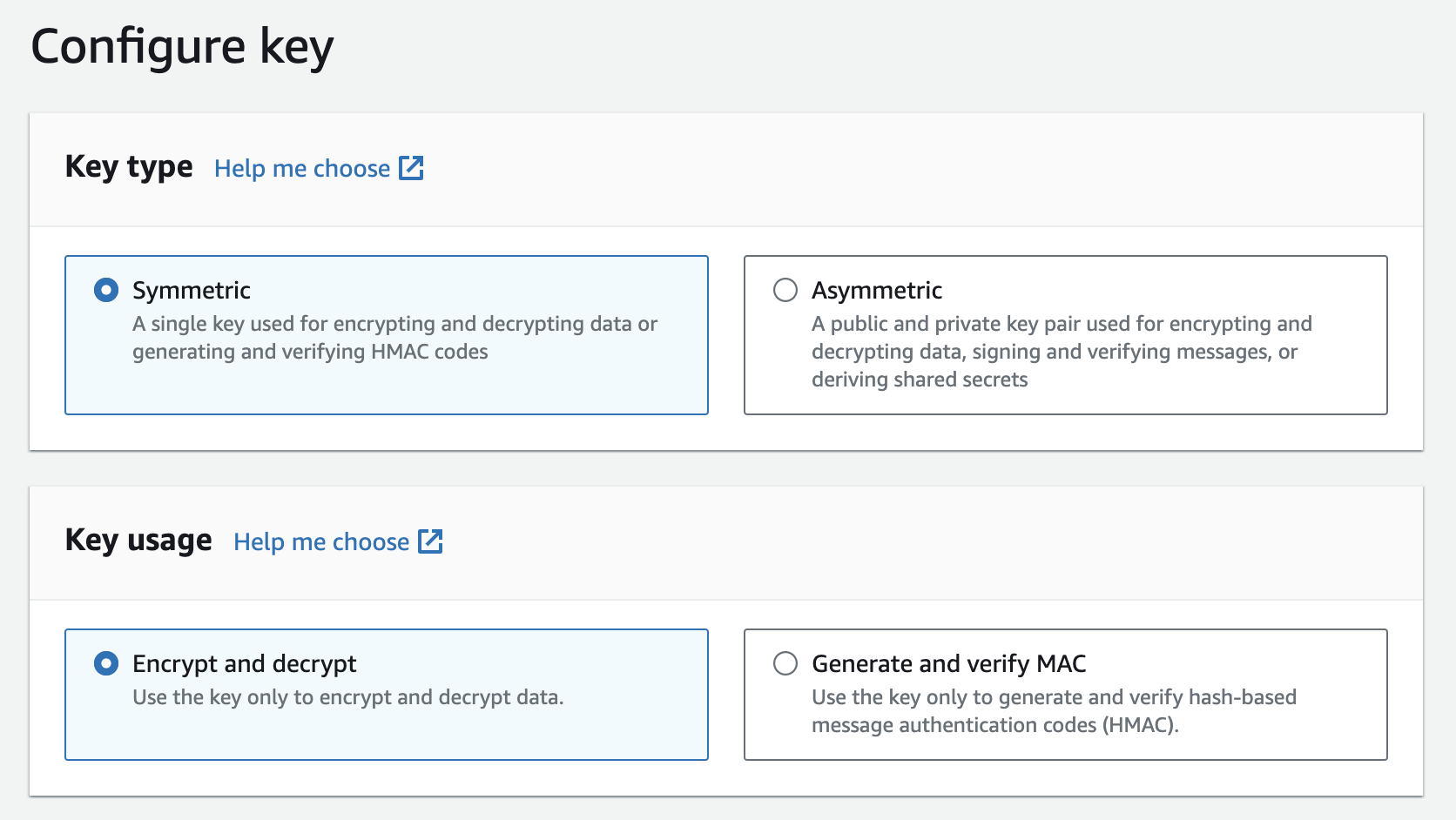
Set Key type to `Symmetric` and Key usage to `Encrypt and decrypt`.
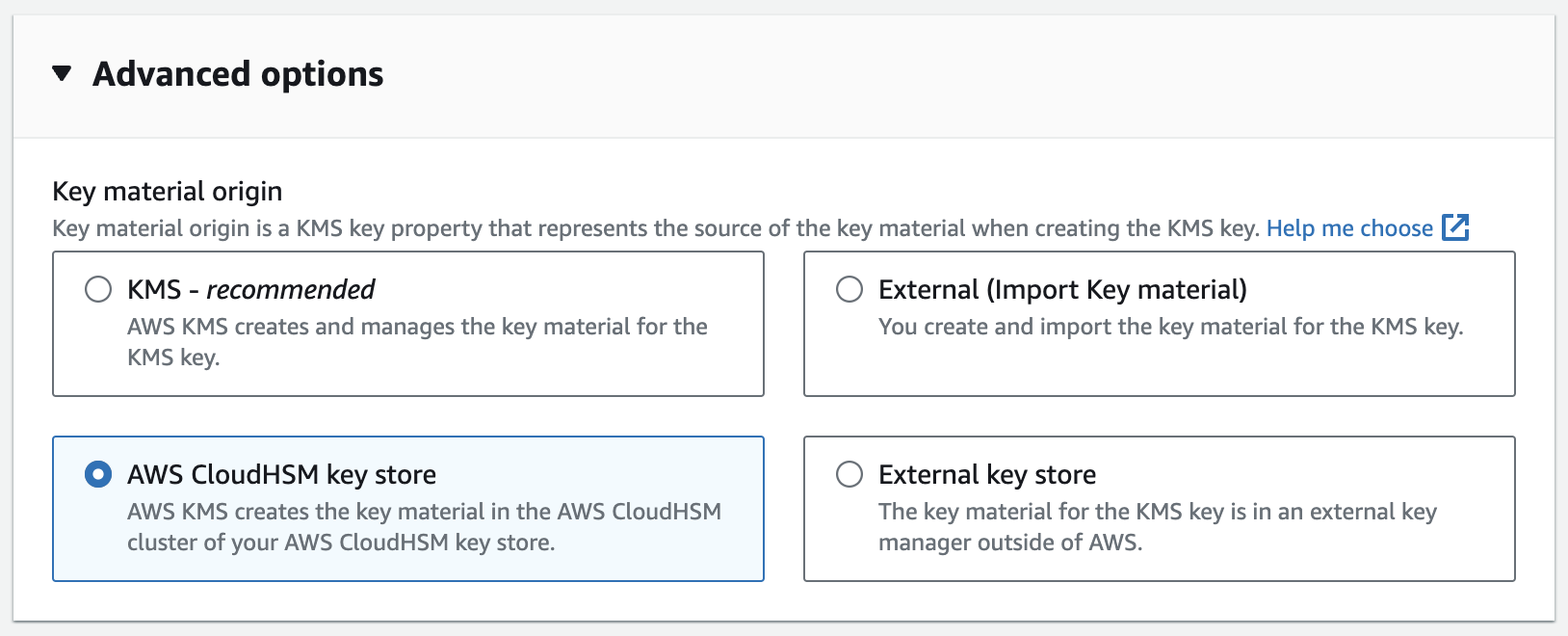
In the advanced options, for the Key material origin field, select `AWS CloudHSM key store`. Then, click next.
Select the AWS CloudHSM key store you created earlier.
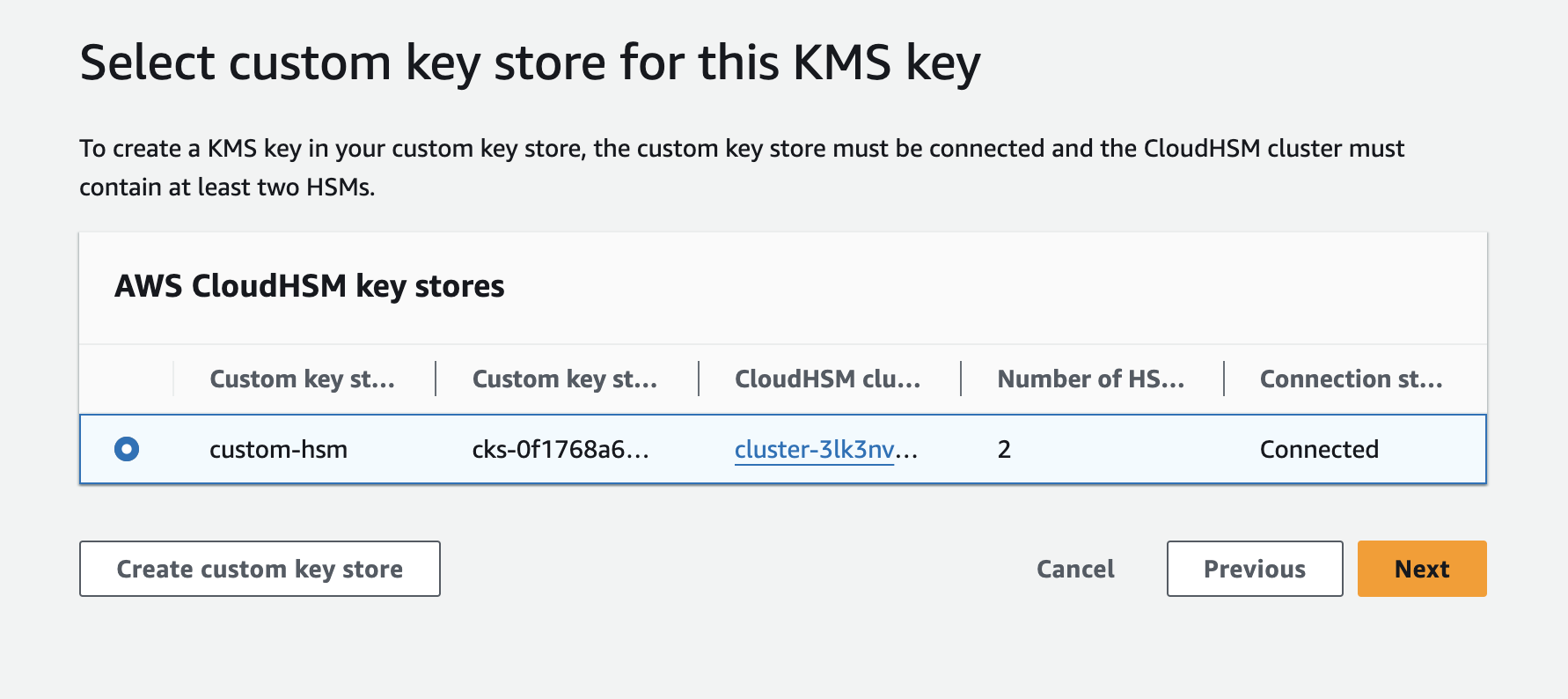
Proceed with creating the AWS KMS Key.
## Connect Infisical to AWS KMS Key
You should now have an AWS KMS that has a custom key store set to AWS CloudHSM.
To secure project resources, you will need to add this AWS KMS to your Infisical organization. To learn how, refer to the documentation [here](./aws-kms).