---
title: "GCP Key Management Service"
description: "Learn how to manage encryption using GCP KMS"
---
To enhance the security of your Infisical projects, you can now encrypt your secrets using an external Key Management Service (KMS).
When external KMS is configured for your project, all encryption and decryption operations will be handled by the chosen KMS.
This guide will walk you through the steps needed to configure external KMS support with Google Cloud KMS.
## Prerequisites
Before you begin, you'll first need to set up a GCP Service Account, add a KMS key and set the required permissions.
1. Navigate to the [Create Service Account](https://console.cloud.google.com/iam-admin/serviceaccounts/create) page in your GCP Console.

2. Give the service account a suitable **name** and **description**. Then click **Create and Continue**.
3. Under **Grant this service account access to project**, click **Select a role** and select the
**Cloud KMS Viewer** and **Cloud KMS CryptoKey Encrypter/Decrypter*** roles, then click **Continue**.

3. You can skip the **Grant users access to this service account** options.
4. Click Done.
5. You should see the service account in the list of service accounts. Click it to view the service account details.
6. Select the **Keys** tab, click **Add Key**, select **Create new key**, select **JSON** as the key type, then click **Create**.
7. You will be prompted to download a JSON file that we will need later on.
Remember to keep the JSON file in a secure location. It will be used to authenticate your GCP service account.
Once you have successfully set up GCP KMS with Infisical, you should permanently delete the JSON file.
1. Navigate to the [KMS](https://console.cloud.google.com/security/kms) page in your GCP Console.
If you have not used GCP KMS before, you will be redirected to the **Cloud Key Management Service (KMS) API** page.
Click **Enable** to enable the KMS API, then continue the steps below.
It may take a few minutes for the API to be enabled and KMS section of the Cloud Console to become viewable.
2. In the KMS section, click **Create Key Ring**.

3. Give the key ring a **Name** and select a **Region**, then click **Create**.
We don't currently support multi-region key rings.
4. On the "Create Key" page, give the key a **Name** and set the **Protection Level** based on your requirements (or use default *Software*), then click **Continue**.
5. Under **Key Material**, select **Generated Key**, then click **Continue**.
6. Under **Purpose**, select **Symmetric encrypt/decrypt**, then click **Continue**.
7. For **Key Rotation Period**, select **Never (manual rotation)**, then click **Continue** followed by **Create**.
8. You should see the key in the list of keys. We're now ready to set it up in Infisical.
## Setup GCP KMS in the Organization Settings
Next, you will need to follow the steps listed below to add GCP KMS for your organization.
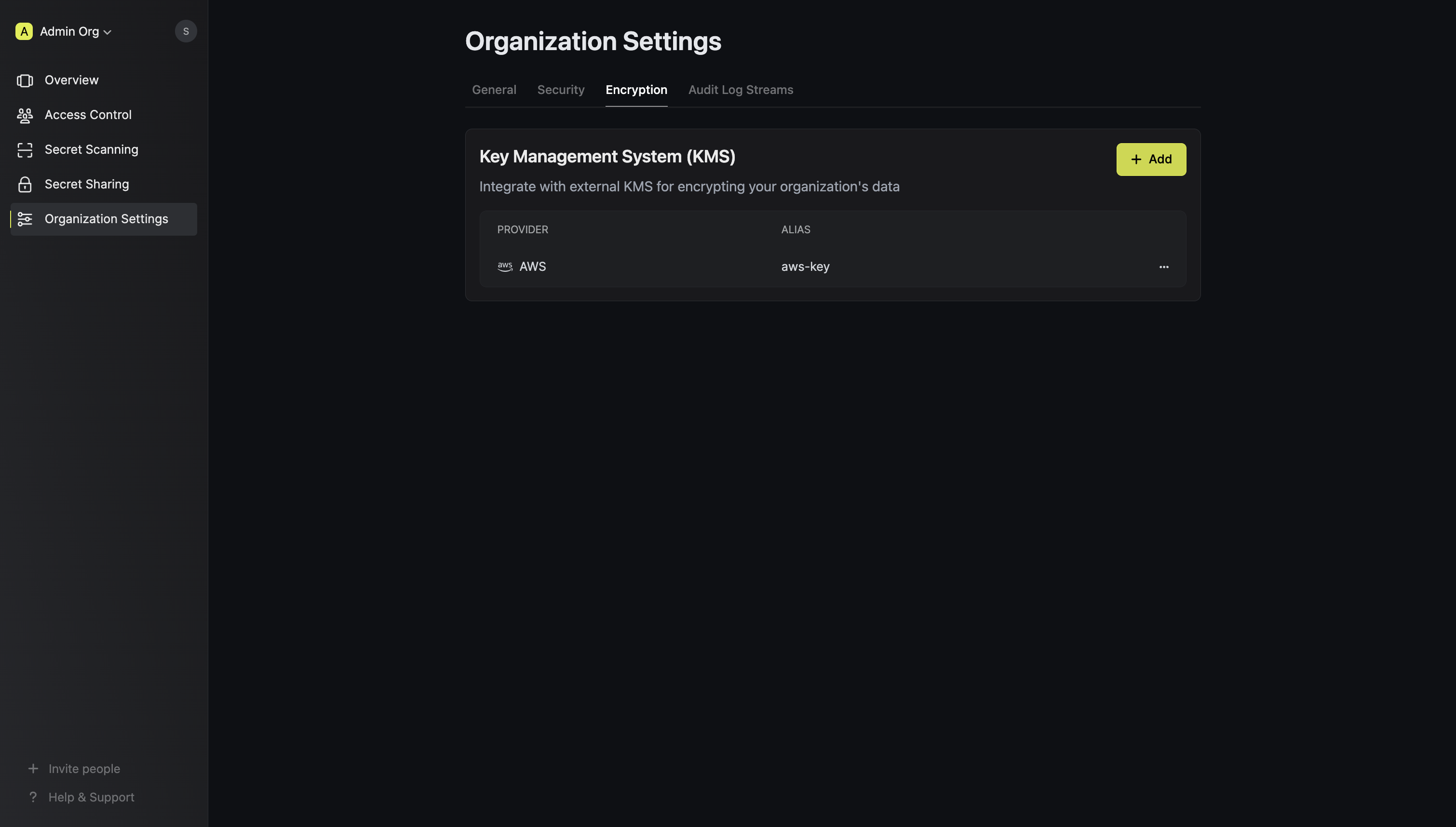
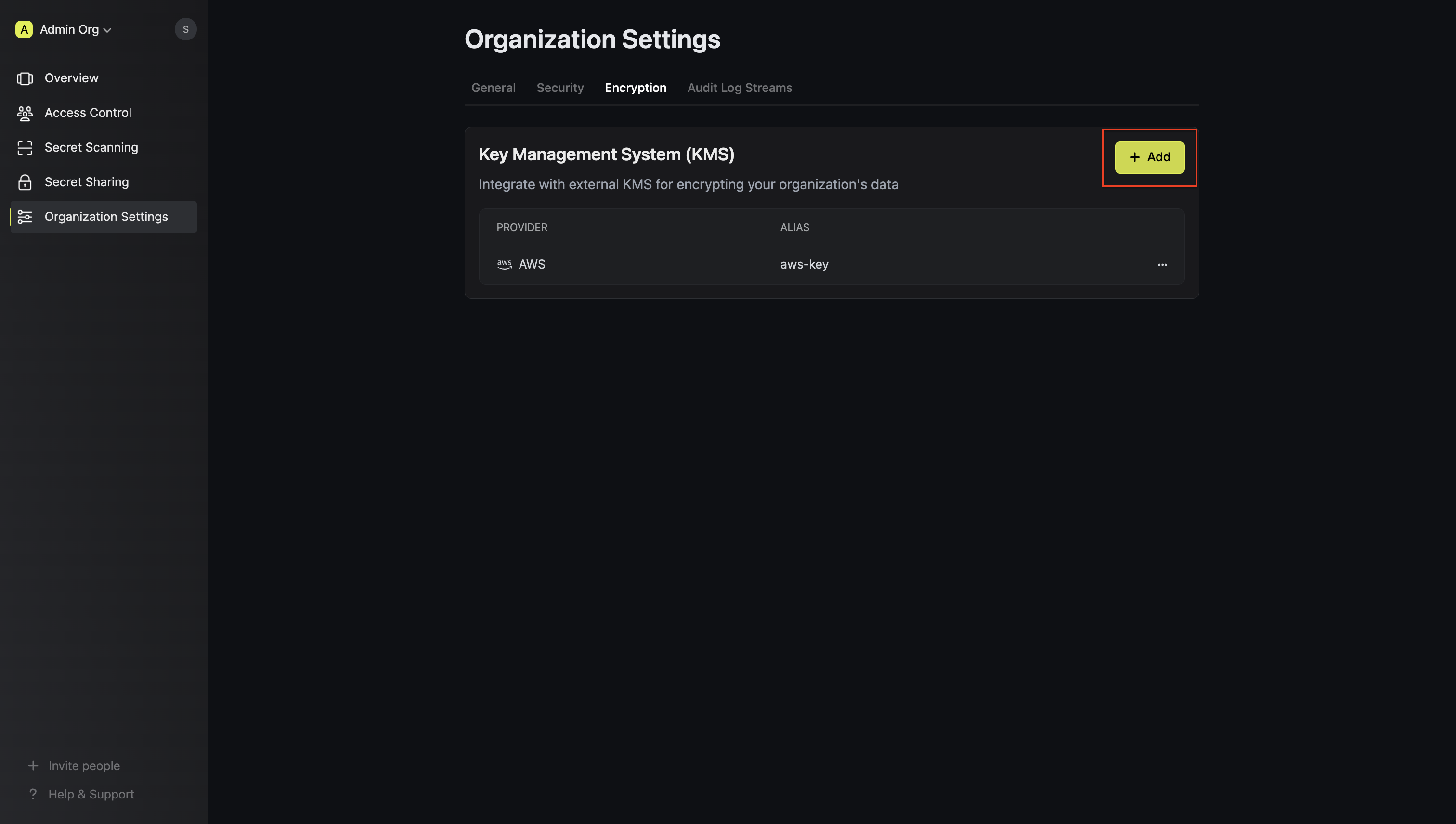
Click the 'Add' button to begin adding a new external KMS.
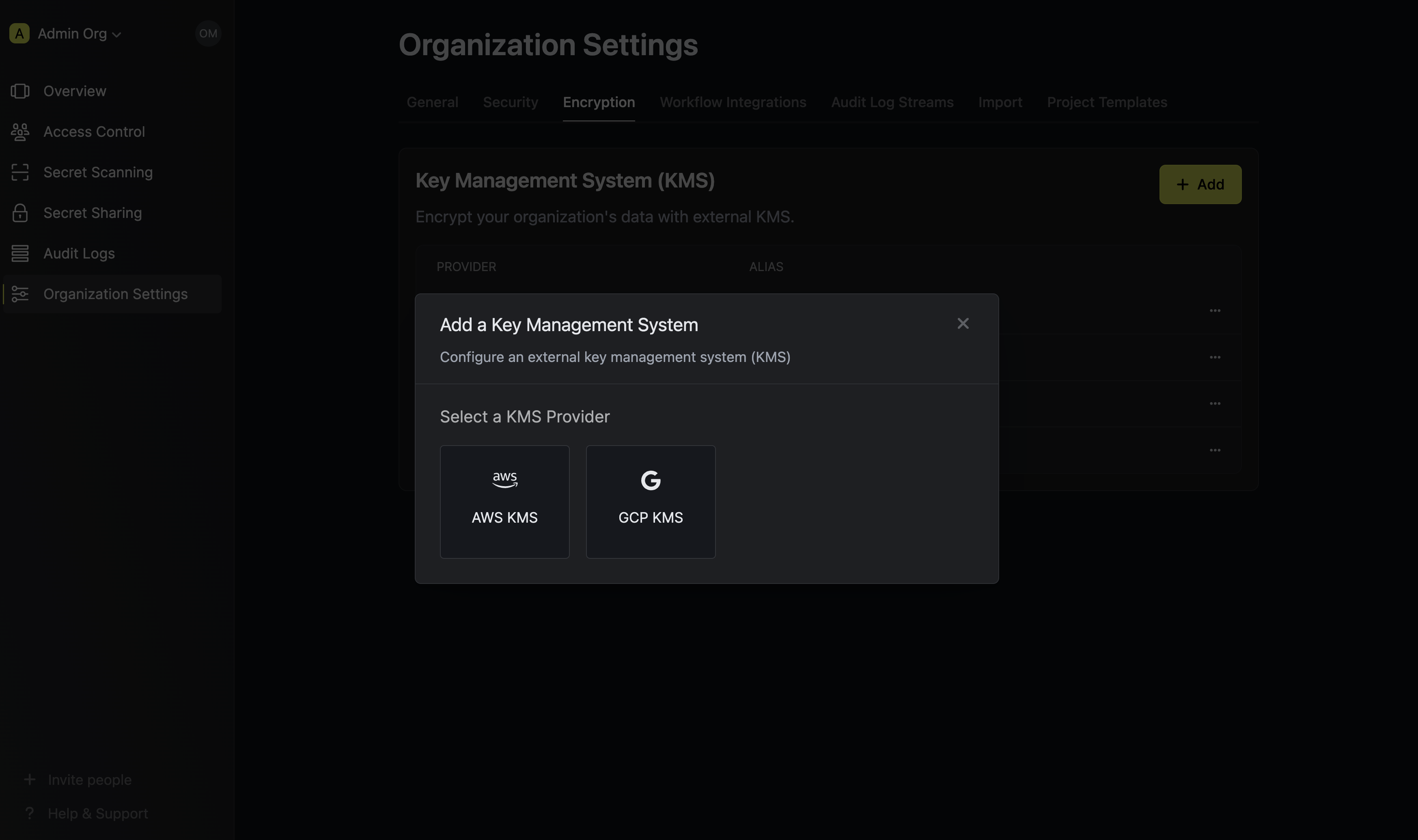
Choose 'GCP KMS' from the list of encryption providers.

Selecting GCP as the provider will require you input the following fields.
Name for referencing the GCP KMS key within the organization.
Short description of the GCP KMS key.
The GCP region where the GCP KMS key ring is located.
Upload the JSON file you downloaded earlier when creating the GCP service account.
This field will be populated with the list of GCP KMS keys in the selected region. Select the key you created earlier.
Save your configuration to apply the settings.
You now have a GCP KMS Key configured at the organization level. You can assign these GCP KMS keys to existing Infisical projects by visiting the 'Project Settings' page.
## Assign GCP KMS Key to an Existing Project
To assign the GCP KMS key you added to your organization, follow the steps below.
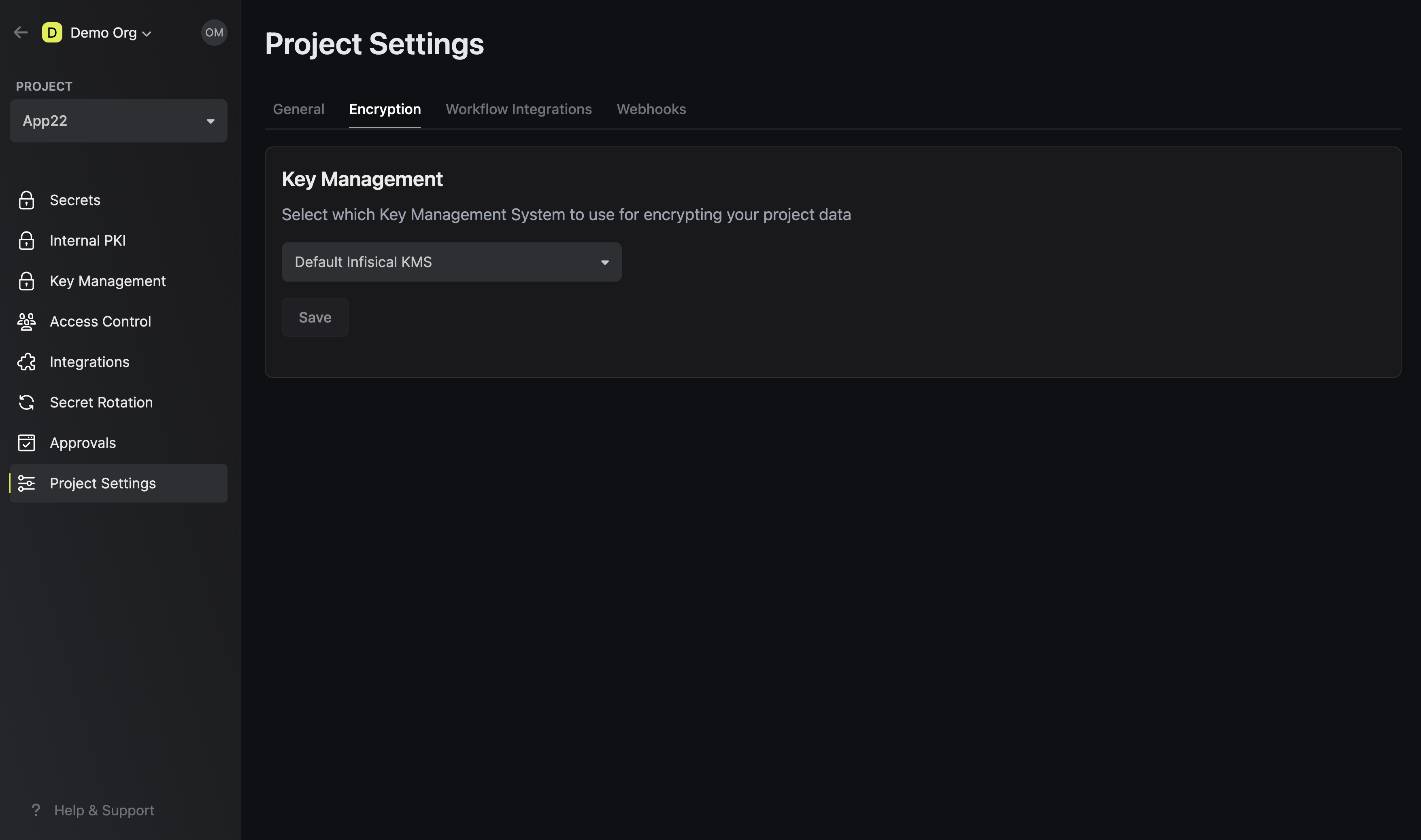
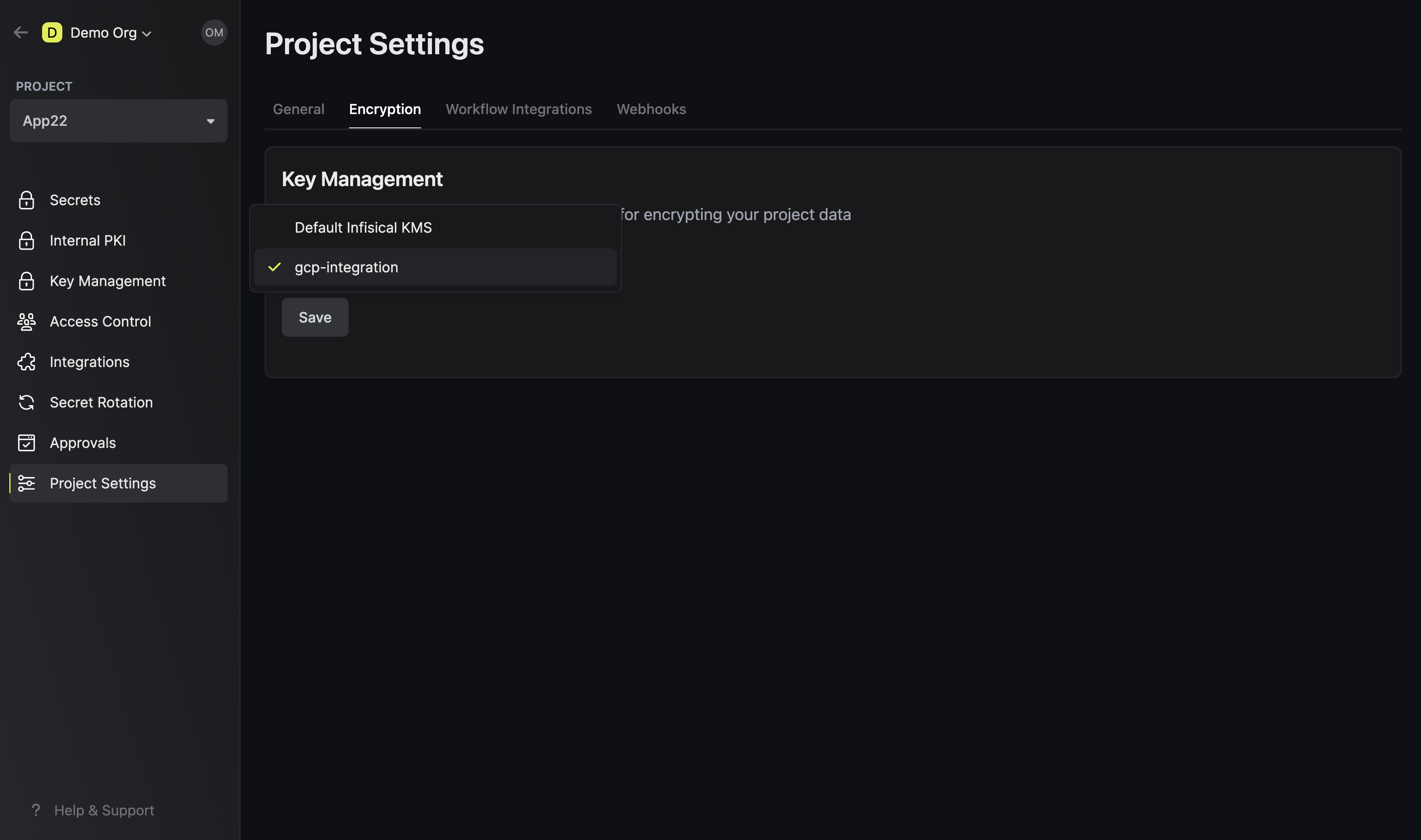
Choose the GCP KMS key you configured earlier.
Once you have selected the KMS of choice, click save.