---
title: "Azure DevOps Connection"
description: "Learn how to configure an Azure DevOps Connection for Infisical."
---
Infisical currently supports three methods for connecting to Azure DevOps, which are OAuth, Azure DevOps Personal Access Token and Client Secrets.
Using the Azure DevOps OAuth connection on a self-hosted instance of Infisical requires configuring an application in Azure
and registering your instance with it.
**Prerequisites:**
- Set up Azure.
Navigate to Azure Active Directory > App registrations to create a new application.
Azure Active Directory is now Microsoft Entra ID.


Create the application. As part of the form, set the **Redirect URI** to `https://your-domain.com/organization/app-connections/azure/oauth/callback`.
The domain you defined in the Redirect URI should be equivalent to the `SITE_URL` configured in your Infisical instance.

For the Azure Connection to work with DevOps Pipelines, you need to assign the following permission to the application.
#### Azure DevOps permissions
Set the API permissions of the Azure application to include the following permissions:
- Azure DevOps
- `user_impersonation`
- `vso.project_write`
- `vso.variablegroups_manage`
- `vso.variablegroups_write`

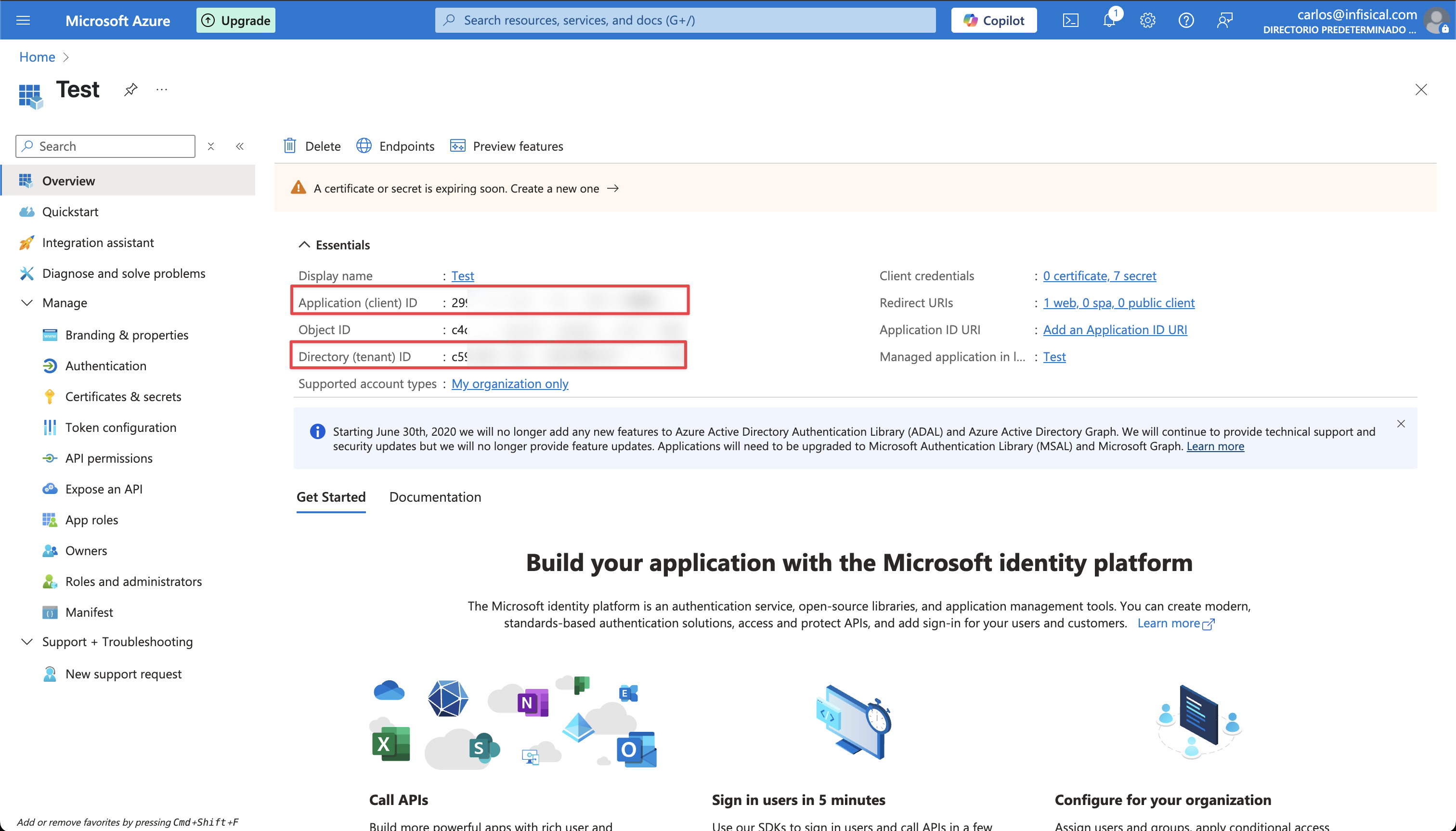
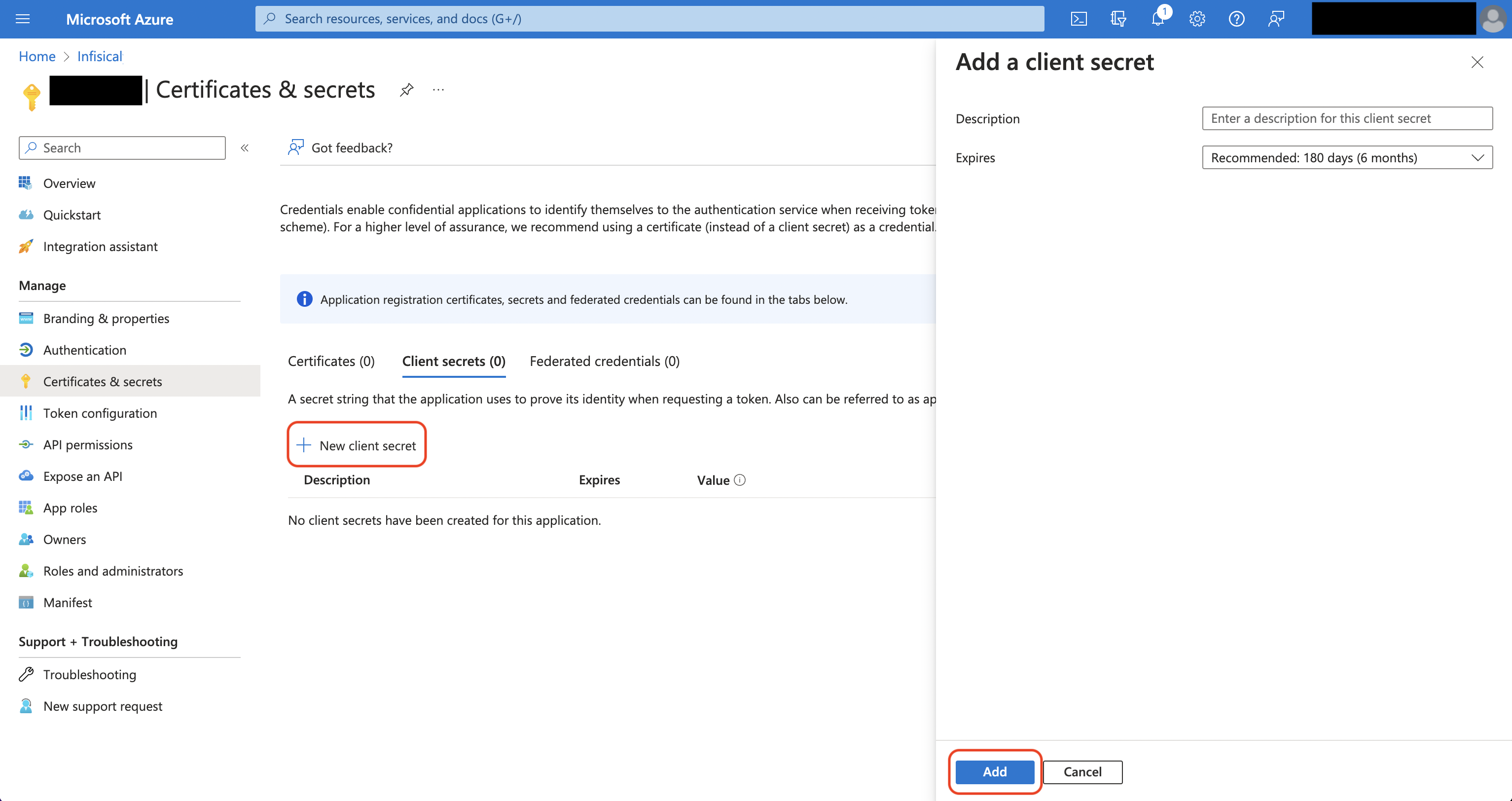
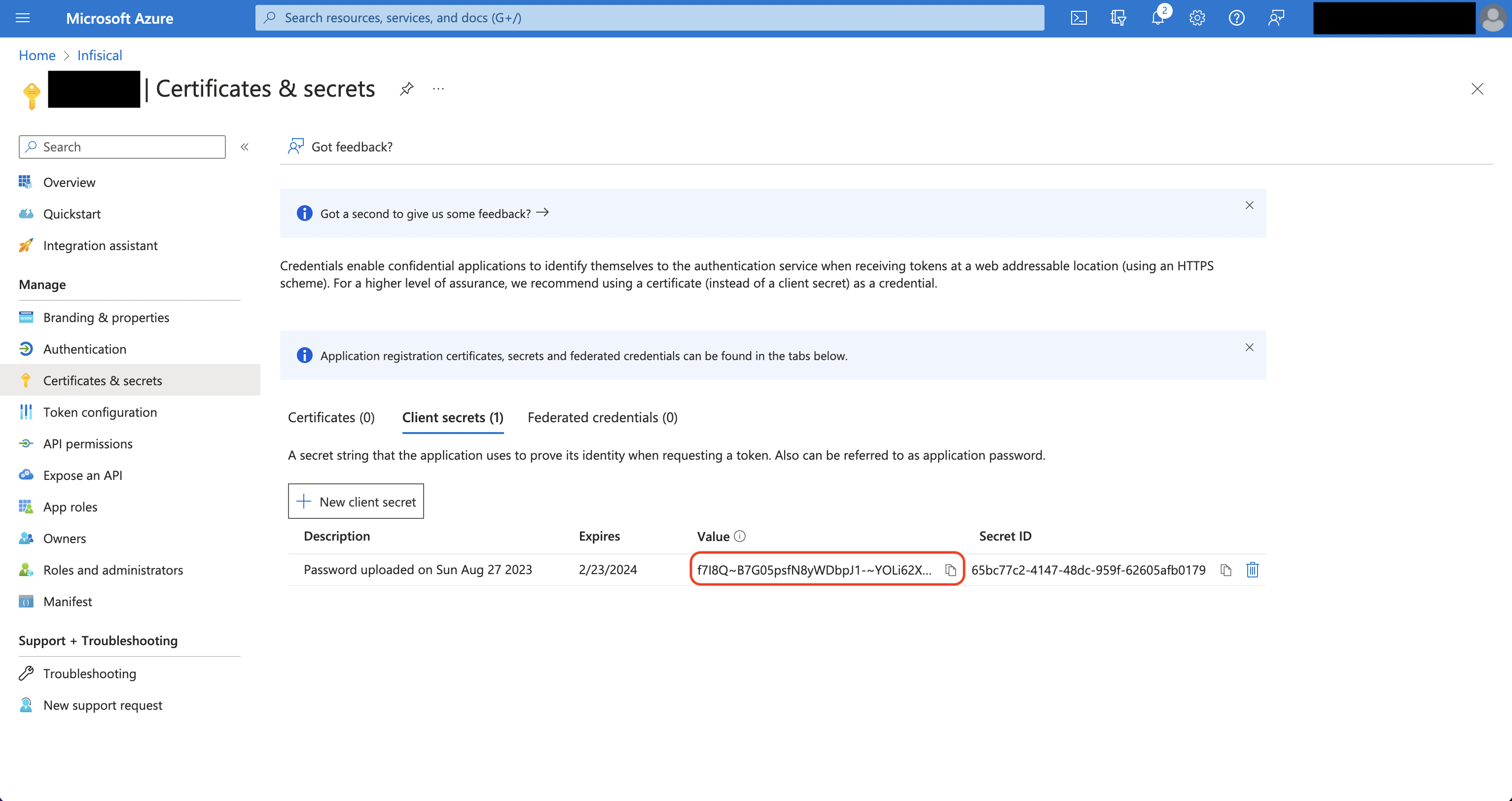
Obtain the **Application (Client) ID** and **Directory (Tenant) ID** (this will be used later in the Infisical connection) in Overview and generate a **Client Secret** in Certificate & secrets for your Azure application.
Back in your Infisical instance, add two new environment variables for the credentials of your Azure application.
- `INF_APP_CONNECTION_AZURE_DEVOPS_CLIENT_ID`: The **Application (Client) ID** of your Azure application.
- `INF_APP_CONNECTION_AZURE_DEVOPS_CLIENT_SECRET`: The **Client Secret** of your Azure application.
Once added, restart your Infisical instance and use the Azure Client Secrets connection.
#### Create a new Azure DevOps personal access token (PAT)
When using the Azure DevOps Access Token connection you'll need to create a new personal access token (PAT) in order to authenticate Infisical with Azure DevOps.
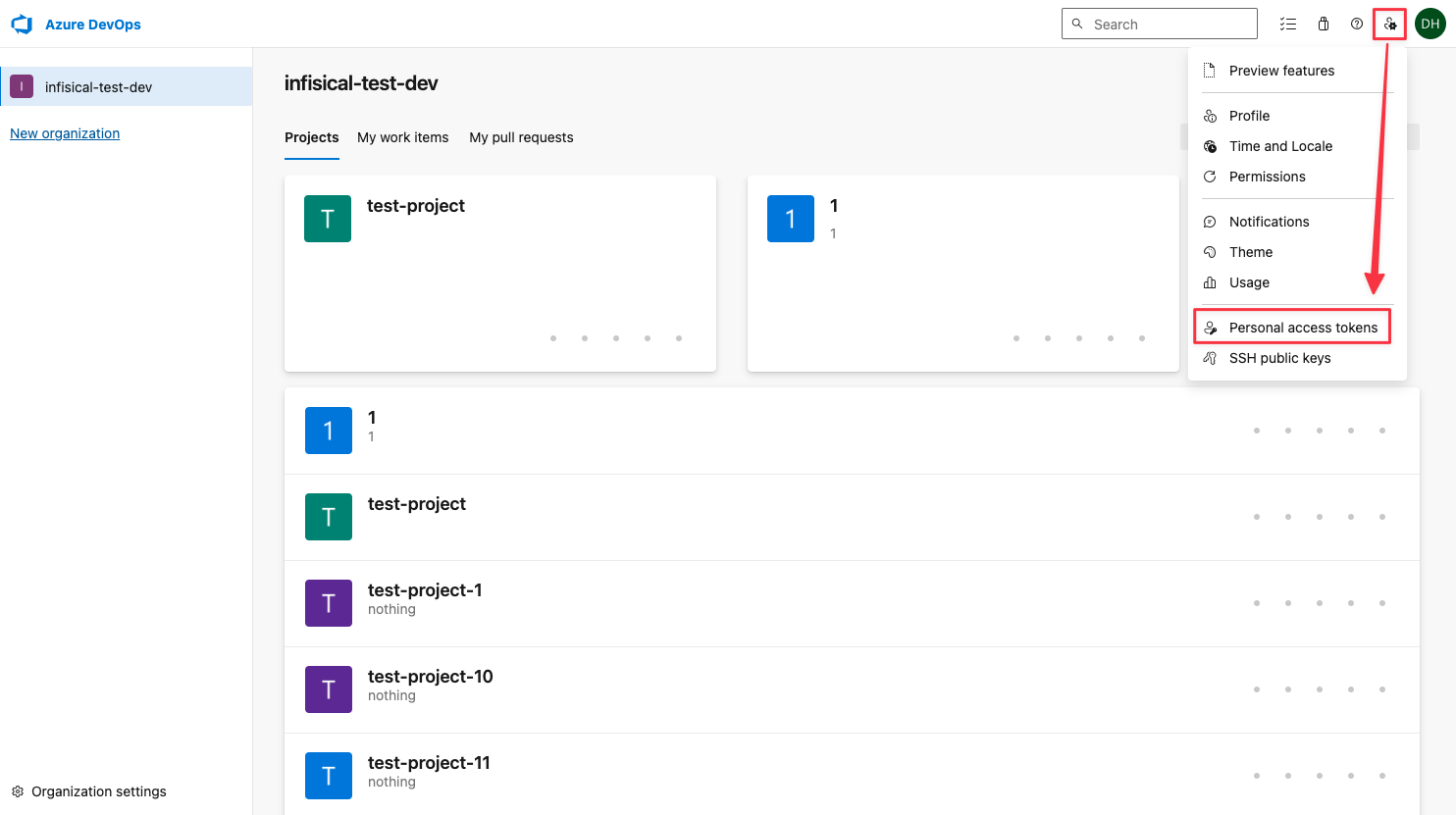
Make sure the newly created token has Read/Write access to the Release scope.
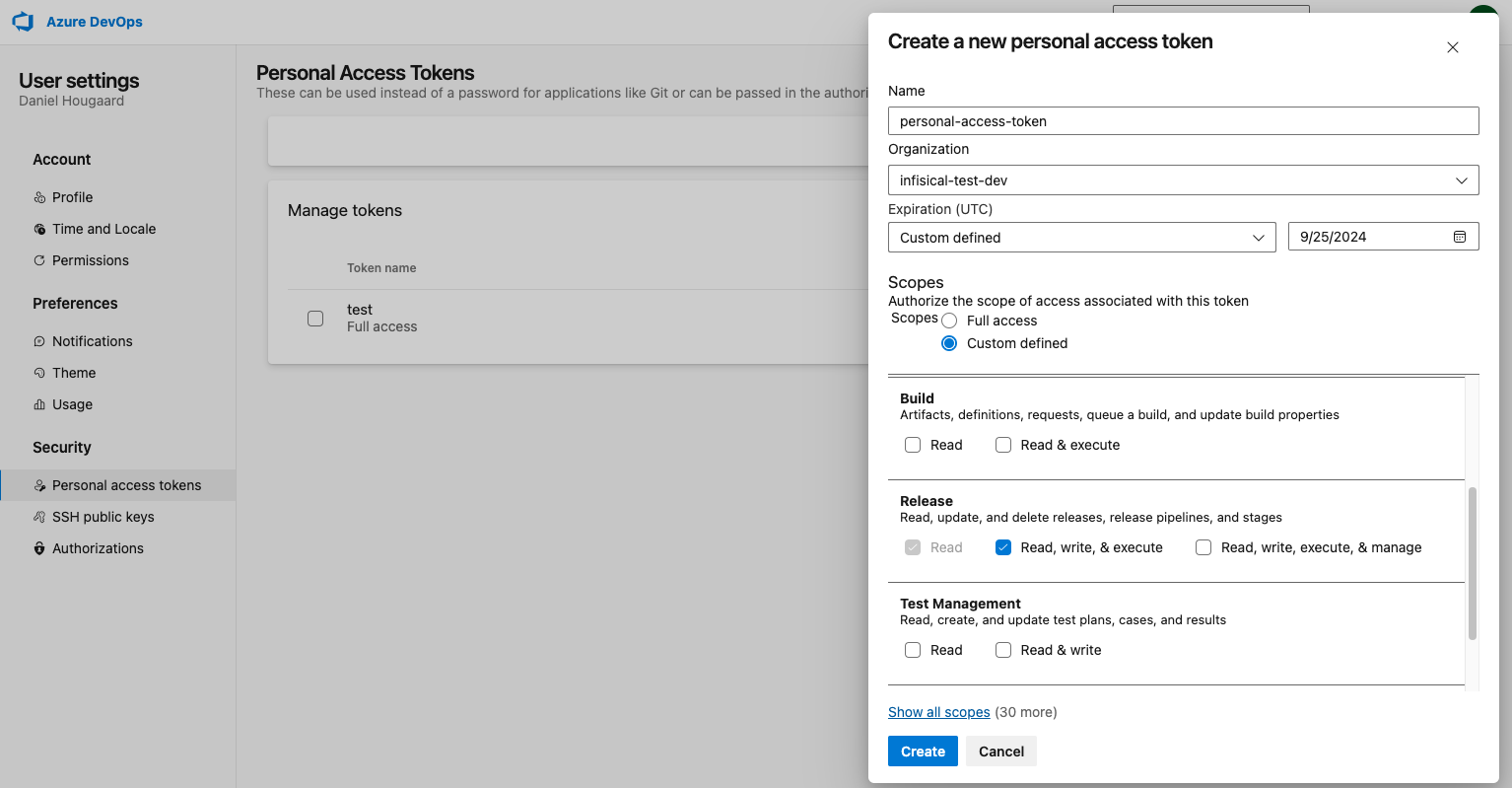
Please make sure that the token has access to the following scopes: Variable Groups _(read, create, & manage)_, Release _(read/write)_, Project and Team _(read)_, Service Connections _(read & query)_
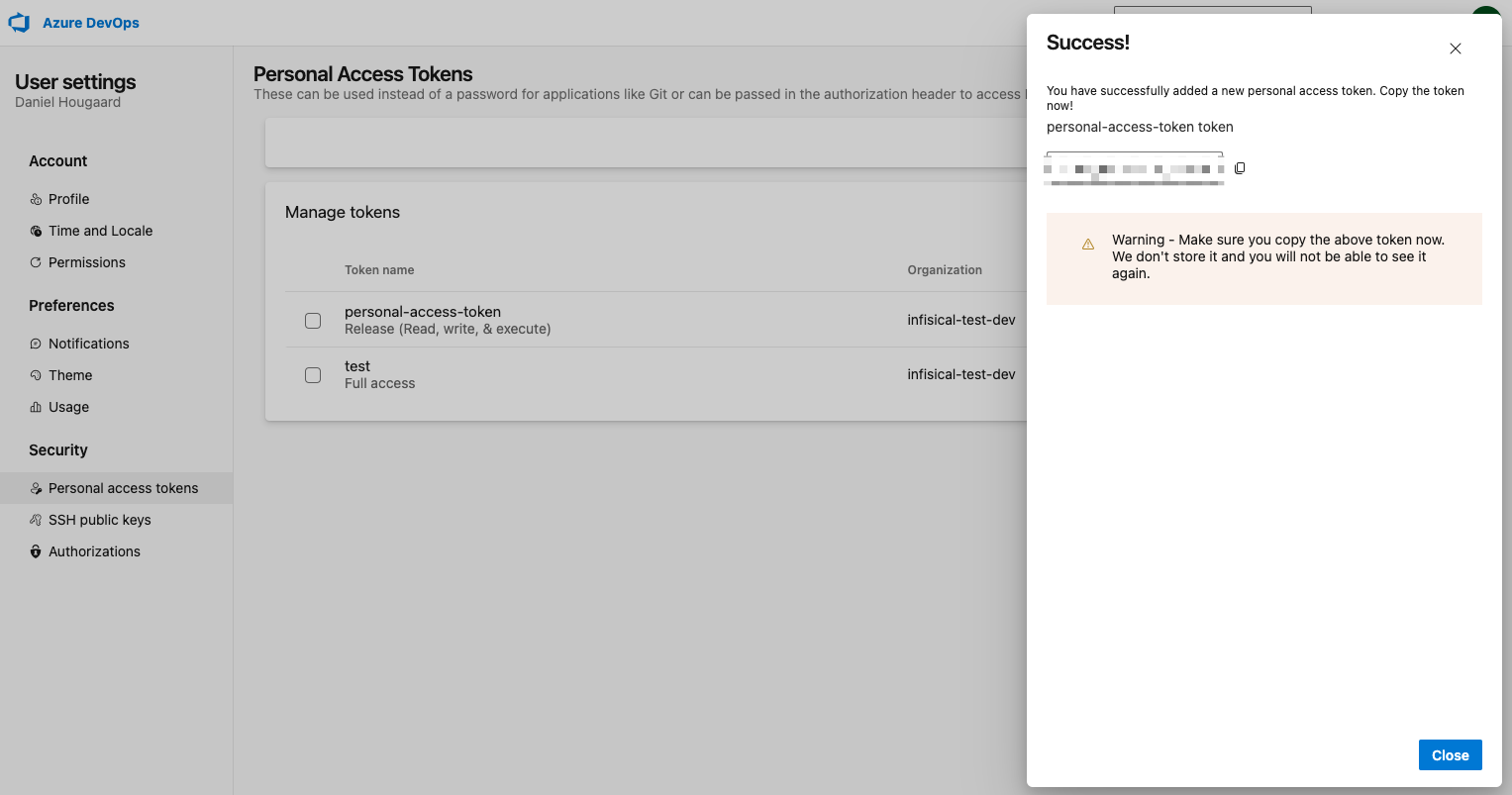
Copy the newly created token as this will be used to authenticate Infisical with Azure DevOps.
To use client secret authentication, ensure your Azure Service Principal has the required permissions and is connected to the Azure DevOps organization and projects you want to use.
**Prerequisites:**
- Set up Azure and have an existing Azure DevOps organization.
- The service principal must be connected to your target Azure DevOps organization and project(s)
Configure the required API permissions for your App Registration to interact with Azure DevOps:
#### Azure DevOps permissions
Set the API permissions of your Azure service principal to include the following Azure DevOps permissions:
- Azure DevOps
- `user_impersonation`
- `vso.project_write`
- `vso.variablegroups_manage`
- `vso.variablegroups_write`

## Setup Azure Connection in Infisical
Navigate to the **App Connections** page in the desired project. 
Select the **Azure Connection** option from the connection options modal. 
Fill in the **Tenant ID** field with the Directory (Tenant) ID you obtained in the previous [step](#azure-oauth-on-a-self-hosted-instance). Also fill in the organization name of the Azure DevOps organization you want to connect to.

You can find the **Organization Name** on https://dev.azure.com/
You will then be redirected to Azure to grant Infisical access to your Azure account. Once granted,
you will be redirected back to Infisical's App Connections page. 
Fill in the **Access Token** field with the Access Token you obtained in the previous step. And the organization name of the Azure DevOps organization you want to connect to.

You can find the **Organization Name** on https://dev.azure.com/
Fill in the **Tenant ID**, **Client ID**, **Client Secret** and **Organization Name** fields with the Directory (Tenant) ID, Application (Client) ID, Client Secret and the organization name you obtained in the previous step.
You can find the **Organization Name** on https://dev.azure.com/

Your **Azure DevOps Connection** is now available for use. 