---
title: "Azure SAML"
description: "Configure Azure SAML for Infisical SSO"
---
Azure SAML SSO feature is a paid feature.
If you're using Infisical Cloud, then it is available under the **Pro Tier**. If you're self-hosting Infisical,
then you should contact team@infisical.com to purchase an enterprise license to use it.
1. In Infisical, head over to your organization Settings > Authentication > SAML SSO Configuration and select **Set up SAML SSO**.
Next, copy the **Reply URL (Assertion Consumer Service URL)** and **Identifier (Entity ID)** to use when configuring the Azure SAML application.

2. In the Azure Portal, navigate to the Azure Active Directory and select **Enterprise applications**. On this screen, select
**+ New application**.

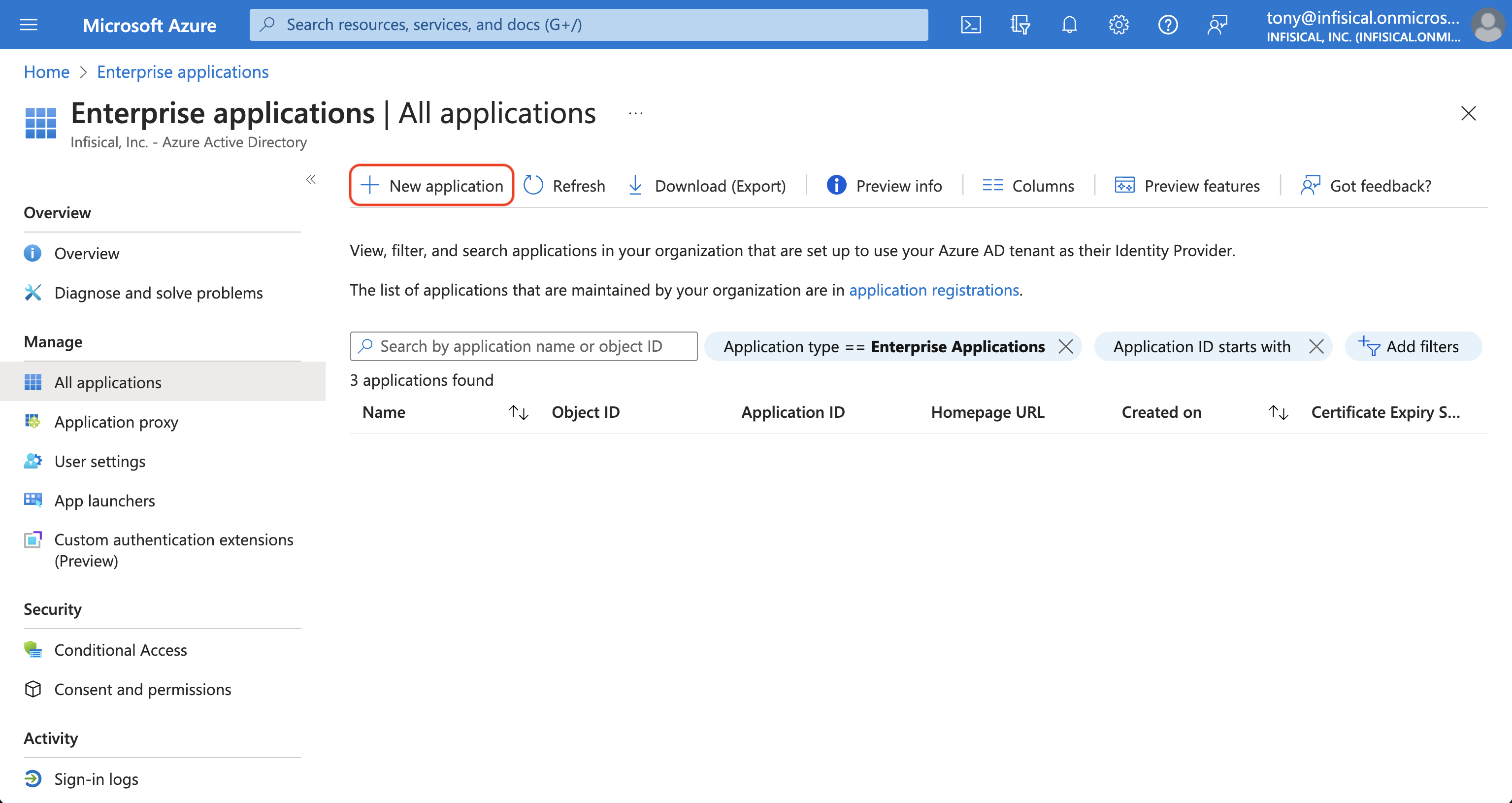
2. On the next screen, press the **+ Create your own application** button.
Give the application a unique name like Infisical; choose the "Integrate any other application you don't find in the gallery (Non-gallery)"
option and hit the **Create** button.

3. On the application overview screen, select **Single sign-on** from the left sidebar. From there,
select the **SAML** single sign-on method.

4. Next, select **Edit** in the **Basic SAML Configuration** section and add/set the **Identifier (Entity ID)**
to **Entity ID** and add/set the **Reply URL (Assertion Consumer Service URL)** to **ACS URL** from step 1.


If you're self-hosting Infisical, then you will want to replace
`https://app.infisical.com` with your own domain.
5. Back in the **Set up Single Sign-On with SAML** screen, select **Edit** in the **Attributes & Claims** section and configure the following map:
- `email -> user.userprinciplename`
- `firstName -> user.firstName`
- `lastName -> user.lastName`


6. Back in the **Set up Single Sign-On with SAML** screen, select **Edit** in the **SAML Certificates** section and set the **Signing Option** field to **Sign SAML response and assertion**.


7. Get IdP values:
Back in the **Set up Single Sign-On with SAML** screen, copy the **Login URL**, **Azure AD Identifier** and **SAML Certificate** to use when finishing configuring Azure SAML in Infisical.
Back in Infisical, set **Login URL** and **Azure AD Identifier** from above. Once you've done that, press **Update** to complete the required configuration.


When pasting the certificate into Infisical, you'll want to retain `-----BEGIN
CERTIFICATE-----` and `-----END CERTIFICATE-----` at the first and last line
of the text area respectively.
Having trouble?, try copying the X509 certificate information from the Federation Metadata XML file in Azure.
7. Assignments
Back in Azure, navigate to the **Users and groups** tab and select **+ Add user/group** to assign access to the login with SSO application on a user or group-level.

8. Return to Infisical and enable SAML SSO.
Enabling SAML SSO enforces all members in your organization to only be able to log into Infisical via Azure.
