---
title: "Gateway"
sidebarTitle: "Overview"
description: "How to access private network resources from Infisical"
---
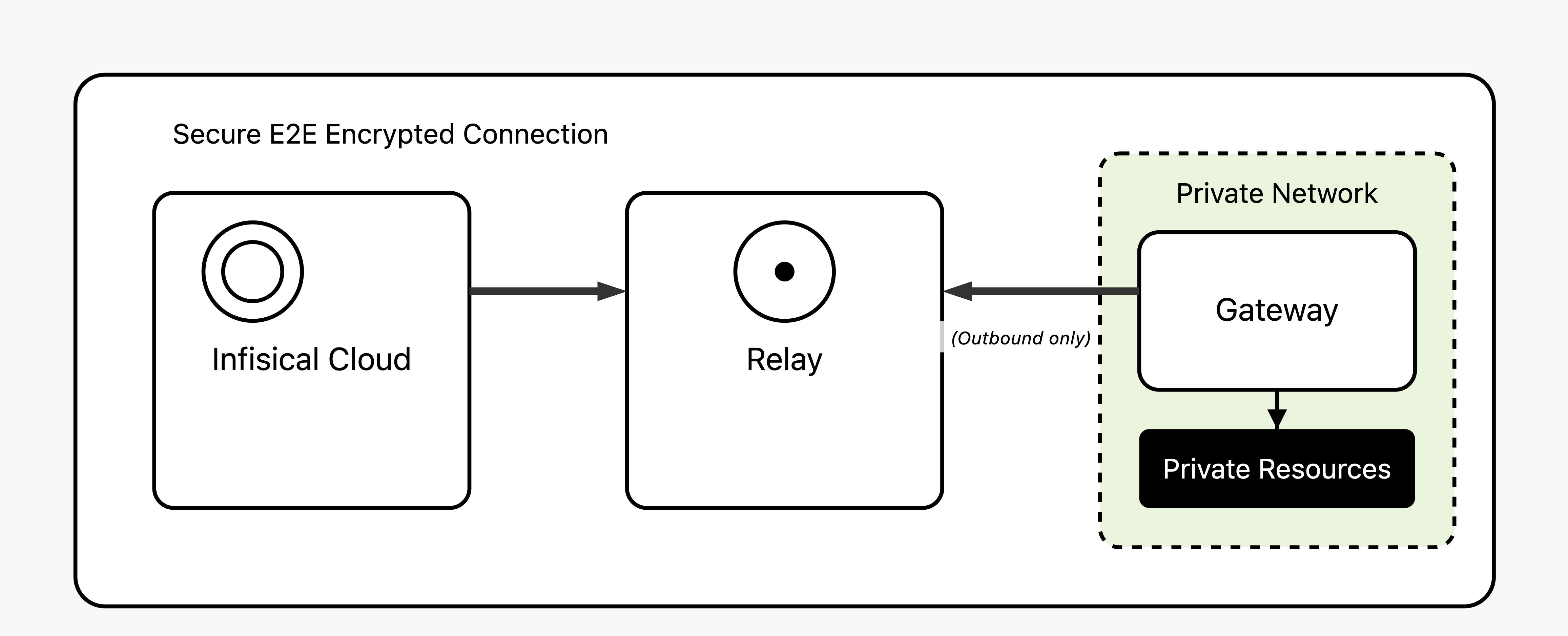
The Infisical Gateway provides secure access to private resources within your network without needing direct inbound connections to your environment. This method keeps your resources fully protected from external access while enabling Infisical to securely interact with resources like databases.
**Architecture Components:**
- **Gateway**: Lightweight agent deployed within your VPCs that provides access to private resources
- **Relay**: Infrastructure that routes encrypted traffic (instance-wide or organization-specific)
Common use cases include generating dynamic credentials or rotating credentials for private databases.
Gateway is a paid feature available under the Enterprise Tier for Infisical
Cloud users. Self-hosted Infisical users can contact
[sales@infisical.com](mailto:sales@infisical.com) to purchase an enterprise
license.
## How It Works
The Gateway system uses SSH reverse tunnels for secure, firewall-friendly connectivity:
1. **Gateway Registration**: The gateway establishes an outbound SSH reverse tunnel to a relay server using SSH certificates issued by Infisical
2. **Relay Routing**: The relay server routes encrypted traffic between the Infisical platform and gateways
3. **Resource Access**: The Infisical platform connects to your private resources through the established gateway connections
**Key Benefits:**
- **No inbound firewall rules needed** - all connections are outbound from your network
- **Firewall-friendly** - uses standard SSH over TCP
- **Certificate-based authentication** provides enhanced security
- **Automatic reconnection** if connections are lost
## Deployment
The Infisical Gateway is integrated into the Infisical CLI under the `gateway` command, making it simple to deploy and manage.
You can install the Gateway in all the same ways you install the Infisical CLI—whether via npm, Docker, or a binary.
For detailed installation instructions, refer to the Infisical [CLI Installation instructions](/cli/overview).
**Prerequisites:**
1. **Relay Server**: Before deploying gateways, you need a running relay server:
- **Infisical Cloud**: Instance relays are already available - no setup needed
- **Self-hosted**: Instance admin must set up shared instance relays, or organizations can deploy their own
2. **Machine Identity**: Configure a machine identity with appropriate permissions to create and manage gateways
Once authenticated, the Gateway establishes an SSH reverse tunnel to the specified relay server, allowing secure access to your private resources.
### Get started
1. Navigate to **Organization Access Control** in your Infisical dashboard.
2. Create a dedicated machine identity for your Gateway.
3. **Best Practice:** Assign a unique identity to each Gateway for better security and management.
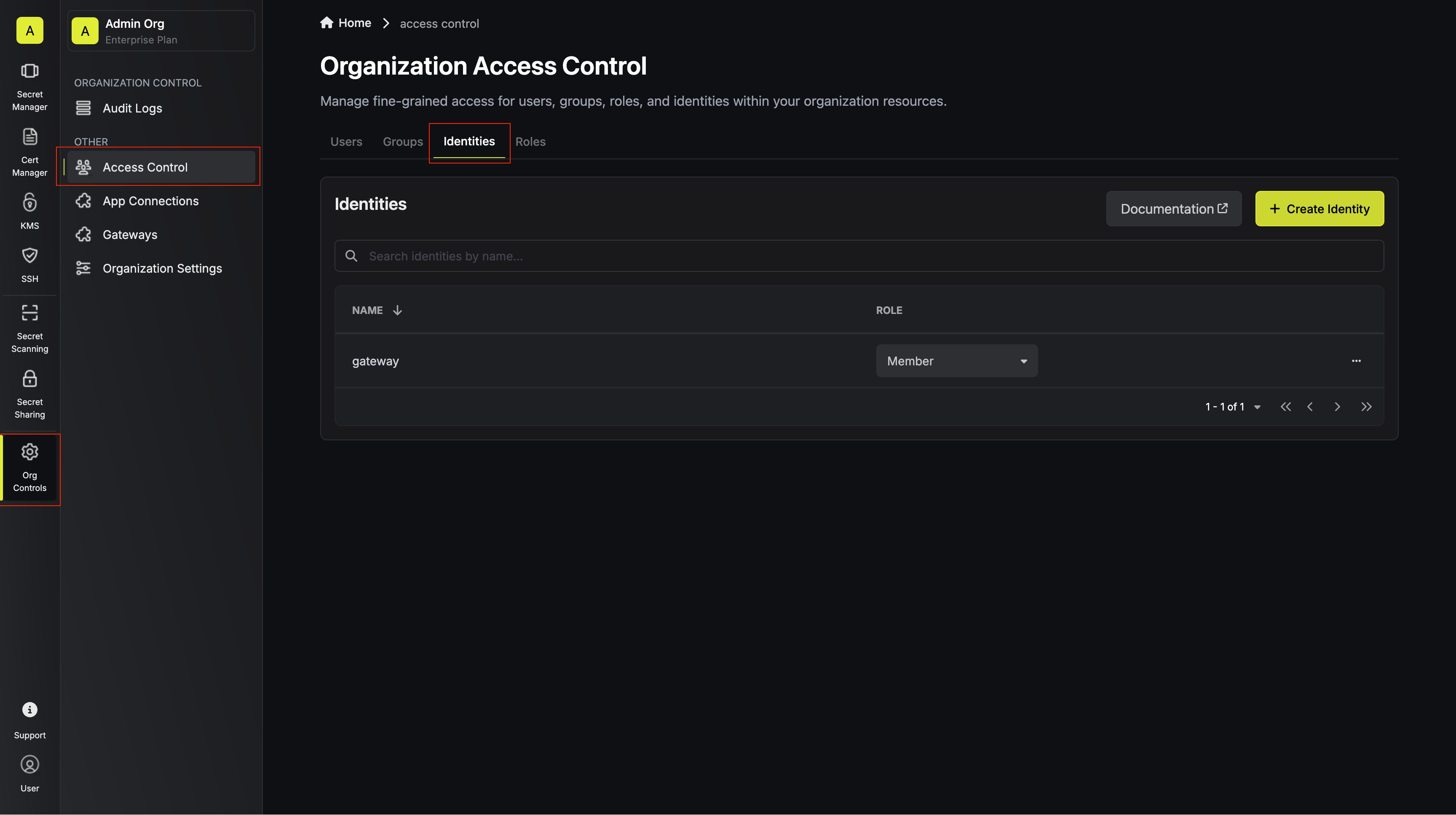
You'll need to choose an authentication method to initiate communication with Infisical. View the available machine identity authentication methods [here](/documentation/platform/identities/machine-identities).
You have two options for relay infrastructure:
**Infisical Cloud:** Instance relays are already running and available - **no setup required**. You can immediately proceed to deploy gateways using these shared relays.
**Self-hosted:** If your instance admin has set up shared instance relays, you can use them directly. If not, the instance admin can set them up:
```bash
# Instance admin sets up shared relay (one-time setup)
export INFISICAL_RELAY_AUTH_SECRET=
infisical relay start --type=instance --ip= --name=
```
**Available for all users:** Deploy your own dedicated relay infrastructure for enhanced control:
```bash
# Deploy organization-specific relay
infisical relay start --type=org --ip= --name= --auth-method=universal-auth --client-id= --client-secret=
```
**When to choose this:**
- You need lower latency (deploy closer to your resources)
- Enhanced security requirements
- Compliance needs (data sovereignty, air-gapped environments)
- Custom network policies
Use the Infisical CLI to deploy the Gateway. You can run it directly or install it as a systemd service for production:
For production deployments on Linux, install the Gateway as a systemd service:
**Gateway v2:** The `infisical gateway systemd install` command deploys the new Gateway v2 component.
If you are migrating from Gateway v1 (legacy `infisical gateway install` command), this is not in-place. Gateway v2 provisions new gateway instances with new gateway IDs. Update any resources that reference a gateway ID (for example: dynamic secret configs, app connections, or other gateway-bound resources) to use the new Gateway v2 gateway ID.
```bash
sudo infisical gateway systemd install --token --domain --name --relay
sudo systemctl start infisical-gateway
```
This will install and start the Gateway as a secure systemd service that:
- Runs with restricted privileges:
- Runs as root user (required for secure token management)
- Restricted access to home directories
- Private temporary directory
- Automatically restarts on failure
- Starts on system boot
- Manages token and domain configuration securely in `/etc/infisical/gateway.conf`
The install command requires:
- Linux operating system
- Root/sudo privileges
- Systemd
The Gateway can be installed via [Helm](https://helm.sh/). Helm is a package manager for Kubernetes that allows you to define, install, and upgrade Kubernetes applications.
For production deployments on Kubernetes, install the Gateway using the Infisical Helm chart:
### Install the latest Helm Chart repository
```bash
helm repo add infisical-helm-charts 'https://dl.cloudsmith.io/public/infisical/helm-charts/helm/charts/'
```
### Update the Helm Chart repository
```bash
helm repo update
```
### Create a Kubernetes Secret containing gateway environment variables
The gateway supports all identity authentication methods through the use of environment variables.
The environment variables must be set in the `infisical-gateway-environment` Kubernetes secret.
#### Supported authentication methods
The Universal Auth method is a simple and secure way to authenticate with Infisical. It requires a client ID and a client secret to authenticate with Infisical.
Your machine identity client ID.
Your machine identity client secret.
The authentication method to use. Must be `universal-auth` when using Universal Auth.
```bash
kubectl create secret generic infisical-gateway-environment \
--from-literal=INFISICAL_AUTH_METHOD=universal-auth \
--from-literal=INFISICAL_UNIVERSAL_AUTH_CLIENT_ID= \
--from-literal=INFISICAL_UNIVERSAL_AUTH_CLIENT_SECRET= \
--from-literal=INFISICAL_RELAY_NAME= \
--from-literal=INFISICAL_GATEWAY_NAME=
```
The Native Kubernetes method is used to authenticate with Infisical when running in a Kubernetes environment. It requires a service account token to authenticate with Infisical.
Your machine identity ID.
Path to the Kubernetes service account token to use. Default: `/var/run/secrets/kubernetes.io/serviceaccount/token`.
The authentication method to use. Must be `kubernetes` when using Native Kubernetes.
```bash
kubectl create secret generic infisical-gateway-environment --from-literal=INFISICAL_AUTH_METHOD=kubernetes --from-literal=INFISICAL_MACHINE_IDENTITY_ID=
```
The Native Azure method is used to authenticate with Infisical when running in an Azure environment.
Your machine identity ID.
The authentication method to use. Must be `azure` when using Native Azure.
```bash
kubectl create secret generic infisical-gateway-environment --from-literal=INFISICAL_AUTH_METHOD=azure --from-literal=INFISICAL_MACHINE_IDENTITY_ID=
```
The Native GCP ID Token method is used to authenticate with Infisical when running in a GCP environment.
Your machine identity ID.
The authentication method to use. Must be `gcp-id-token` when using Native GCP ID Token.
```bash
kubectl create secret generic infisical-gateway-environment --from-literal=INFISICAL_AUTH_METHOD=gcp-id-token --from-literal=INFISICAL_MACHINE_IDENTITY_ID=
```
The GCP IAM method is used to authenticate with Infisical with a GCP service account key.
Your machine identity ID.
Path to your GCP service account key file _(Must be in JSON format!)_
The authentication method to use. Must be `gcp-iam` when using GCP IAM.
```bash
kubectl create secret generic infisical-gateway-environment --from-literal=INFISICAL_AUTH_METHOD=gcp-iam --from-literal=INFISICAL_MACHINE_IDENTITY_ID= --from-literal=INFISICAL_GCP_SERVICE_ACCOUNT_KEY_FILE_PATH=
```
The AWS IAM method is used to authenticate with Infisical with an AWS IAM role while running in an AWS environment like EC2, Lambda, etc.
Your machine identity ID.
The authentication method to use. Must be `aws-iam` when using Native AWS IAM.
```bash
kubectl create secret generic infisical-gateway-environment --from-literal=INFISICAL_AUTH_METHOD=aws-iam --from-literal=INFISICAL_MACHINE_IDENTITY_ID=
```
The OIDC Auth method is used to authenticate with Infisical via identity tokens with OIDC.
Your machine identity ID.
The OIDC JWT from the identity provider.
The authentication method to use. Must be `oidc-auth` when using OIDC Auth.
```bash
kubectl create secret generic infisical-gateway-environment --from-literal=INFISICAL_AUTH_METHOD=oidc-auth --from-literal=INFISICAL_MACHINE_IDENTITY_ID= --from-literal=INFISICAL_JWT=
```
The JWT Auth method is used to authenticate with Infisical via a JWT token.
The JWT token to use for authentication.
Your machine identity ID.
The authentication method to use. Must be `jwt-auth` when using JWT Auth.
```bash
kubectl create secret generic infisical-gateway-environment --from-literal=INFISICAL_AUTH_METHOD=jwt-auth --from-literal=INFISICAL_JWT= --from-literal=INFISICAL_MACHINE_IDENTITY_ID=
```
You can use the `INFISICAL_TOKEN` environment variable to authenticate with Infisical with a raw machine identity access token.
The machine identity access token to use for authentication.
```bash
kubectl create secret generic infisical-gateway-environment --from-literal=INFISICAL_TOKEN=
```
#### Required environment variables
In addition to the authentication method above, you **must** include these required variables:
The name of the relay server that this gateway should connect to.
The name of this gateway instance.
**Complete example with required variables:**
```bash
kubectl create secret generic infisical-gateway-environment \
--from-literal=INFISICAL_AUTH_METHOD=universal-auth \
--from-literal=INFISICAL_UNIVERSAL_AUTH_CLIENT_ID= \
--from-literal=INFISICAL_UNIVERSAL_AUTH_CLIENT_SECRET= \
--from-literal=INFISICAL_RELAY_NAME= \
--from-literal=INFISICAL_GATEWAY_NAME=
```
#### Other environment variables
The API URL to use for the gateway. By default, `INFISICAL_API_URL` is set to `https://app.infisical.com`.
### Install the Infisical Gateway Helm Chart
**Version mapping:** Helm chart versions `>= 1.0.0` contain the new Gateway v2 component. Helm chart versions `<= 0.0.5` contain the legacy Gateway v1 component.
If you are moving from Gateway v1 (chart `<= 0.0.5`) to Gateway v2 (chart `>= 1.0.0`), this is not in-place. Gateway v2 provisions new gateway instances with new gateway IDs. Update any resources that reference a gateway ID (for example: dynamic secret configs, app connections, or other gateway-bound resources) to use the new Gateway v2 gateway ID.
```bash
helm install infisical-gateway infisical-helm-charts/infisical-gateway
```
### Check the gateway logs
After installing the gateway, you can check the logs to ensure it's running as expected.
```bash
kubectl logs deployment/infisical-gateway
```
You should see the following output which indicates the gateway is running as expected.
```bash
$ kubectl logs deployment/infisical-gateway
12:43AM INF Starting gateway
12:43AM INF Starting gateway certificate renewal goroutine
12:43AM INF Successfully registered gateway and received certificates
12:43AM INF Connecting to relay server infisical-start on 152.42.218.156:2222...
12:43AM INF Relay connection established for gateway
12:43AM INF Received incoming connection, starting TLS handshake
12:43AM INF TLS handshake completed successfully
12:43AM INF Negotiated ALPN protocol: infisical-ping
12:43AM INF Starting ping handler
12:43AM INF Ping handler completed
12:43AM INF Gateway is reachable by Infisical
```
For development or testing, you can run the Gateway directly. Log in with your machine identity and start the Gateway in one command:
```bash
infisical gateway start --token $(infisical login --method=universal-auth --client-id=<> --client-secret=<> --plain) --relay= --name=
```
Alternatively, if you already have the token, use it directly with the `--token` flag:
```bash
infisical gateway start --token --relay= --name=
```
Or set it as an environment variable:
```bash
export INFISICAL_TOKEN=
infisical gateway start --relay= --name=
```
For detailed information about the gateway commands and their options, see the [gateway command documentation](/cli/commands/gateway).
**Requirements:**
- Ensure the deployed Gateway has network access to the private resources you intend to connect with Infisical
- The gateway must be able to reach the relay server (outbound connection only)
- Replace `` with the name of your relay server and `` with a unique name for this gateway
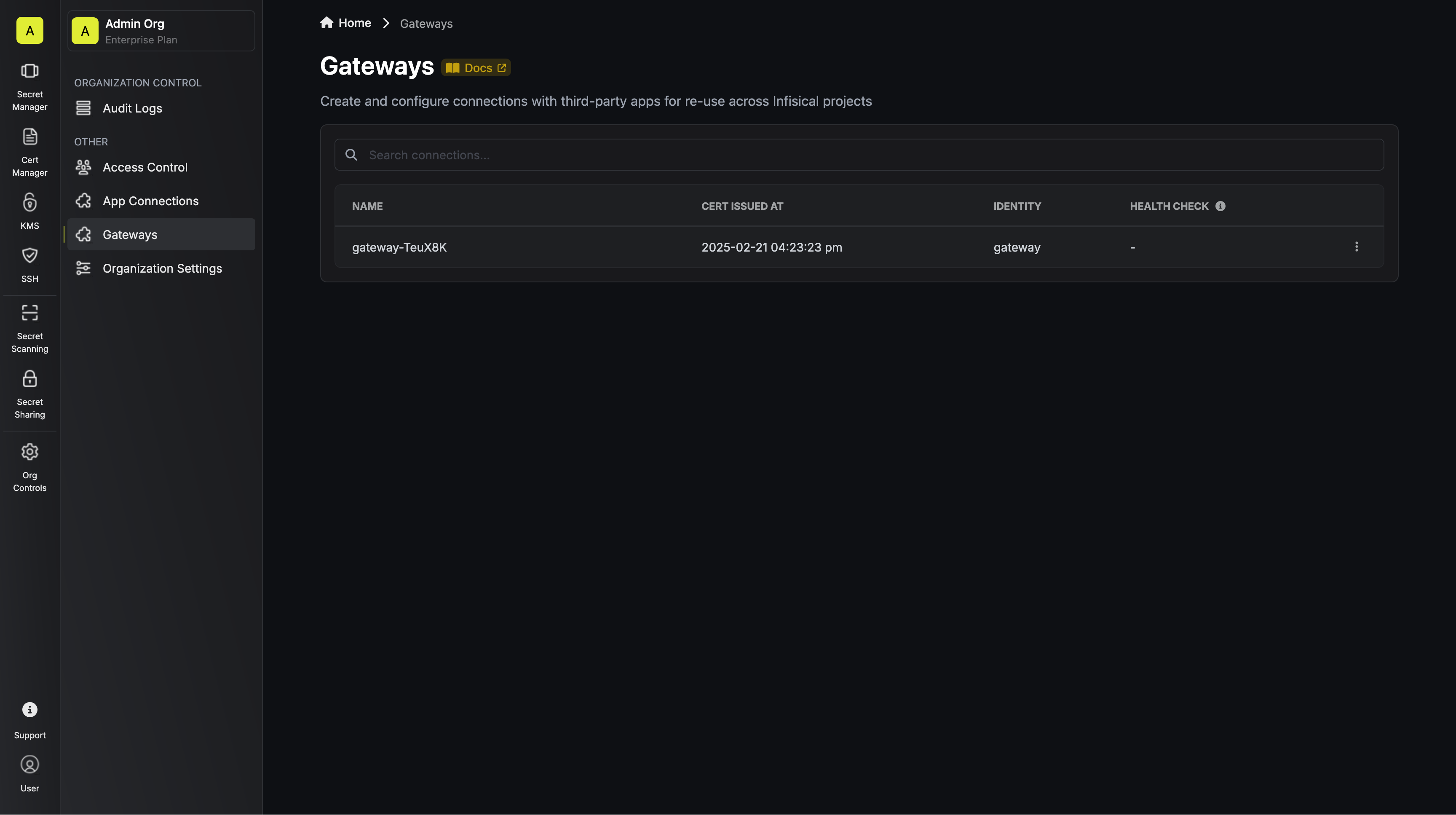
To confirm your Gateway is working, check the deployment status by looking for the message **"Gateway started successfully"** in the Gateway logs. This indicates the Gateway is running properly. Next, verify its registration by opening your Infisical dashboard, navigating to **Organization Access Control**, and selecting the **Gateways** tab. Your newly deployed Gateway should appear in the list.