---
title: "Multi-factor Authentication"
sidebarTitle: "MFA"
description: "Learn how to secure your Infisical account with MFA."
---
MFA requires users to provide multiple forms of identification to access their account. Currently, this means logging in with your password and a 6-digit code sent to your email.
## Email 2FA
Check the box in Personal Settings > Two-factor Authentication to enable email-based 2FA.
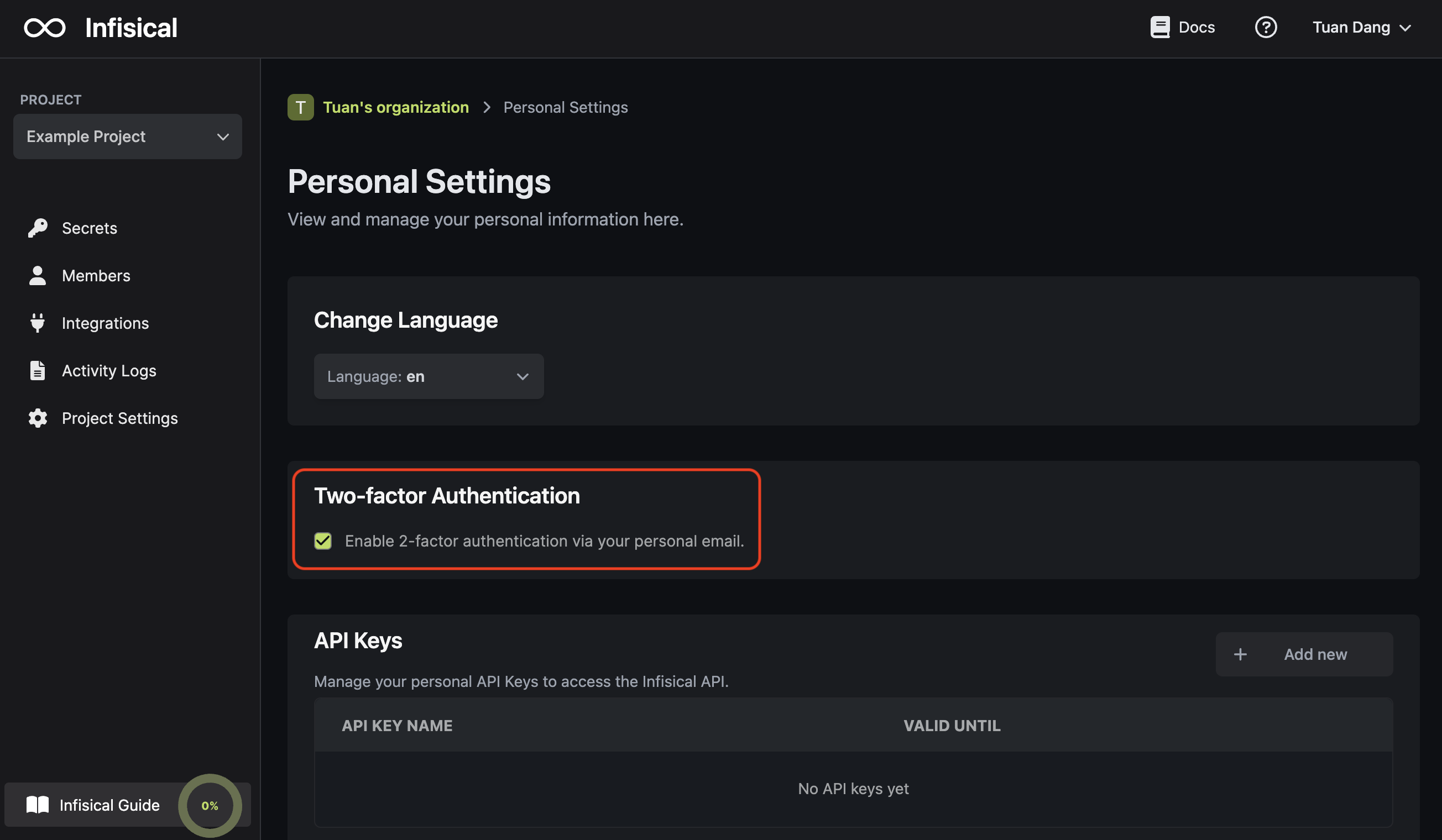
Infisical currently supports email-based 2FA. We're actively working on
building support for other forms of identification via SMS and Authenticator
App.
## Entra ID / Azure AD MFA
Before proceeding make sure you've enabled [SAML SSO for Entra ID / Azure AD](./sso/azure).
We also encourage you to have your team download and setup the
[Microsoft Authenticator App](https://www.microsoft.com/en-us/security/mobile-authenticator-app) prior to enabling MFA.
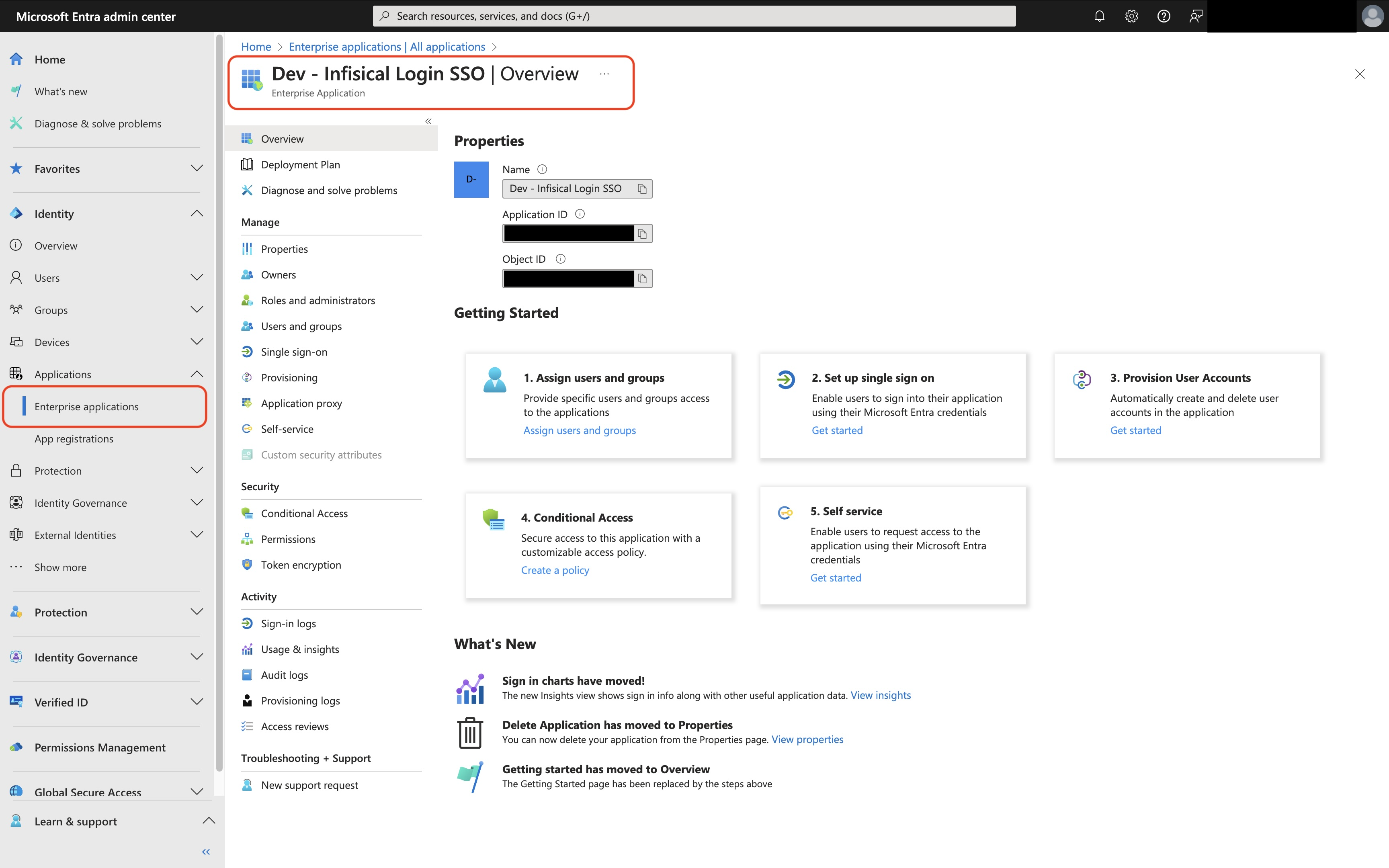
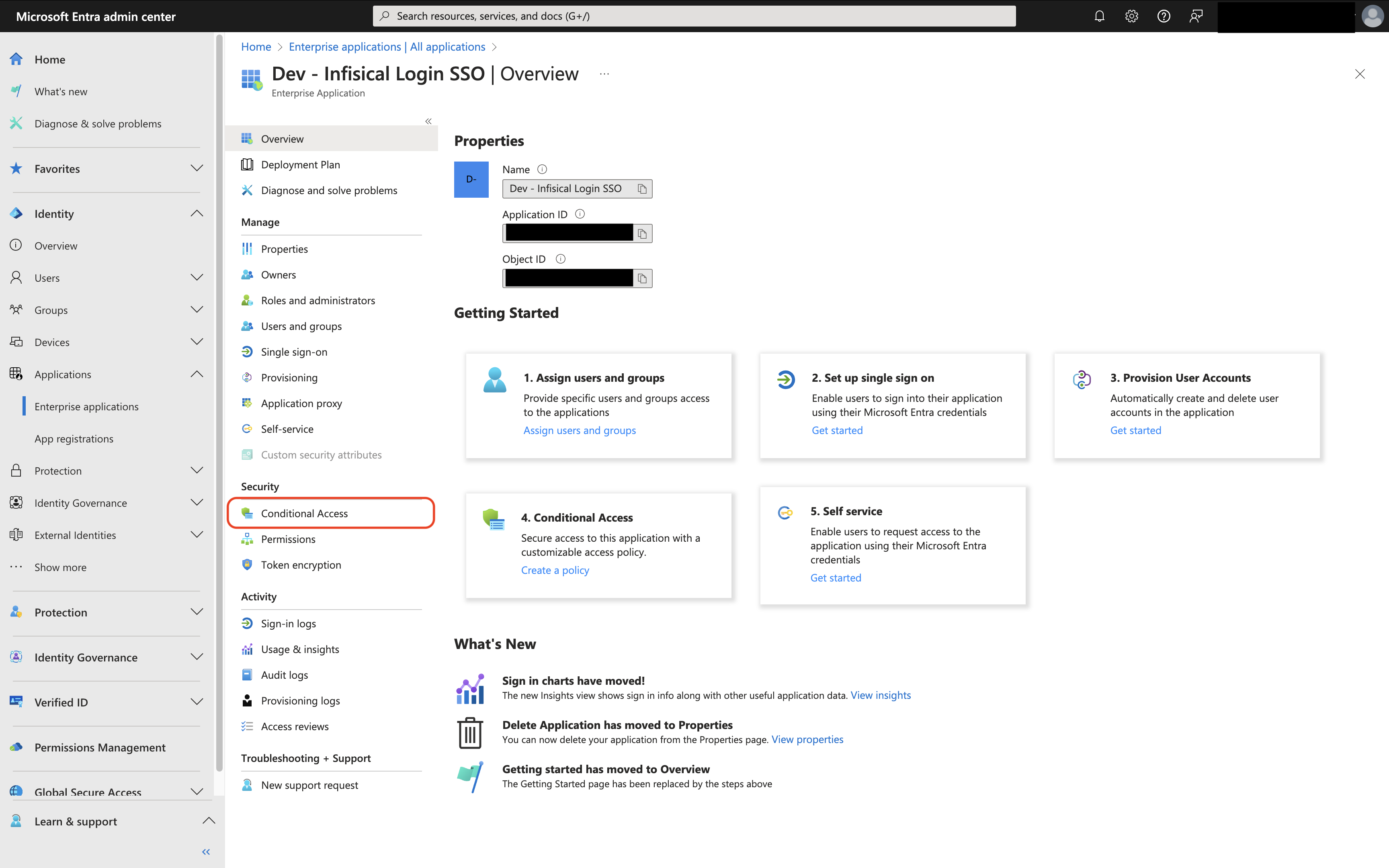
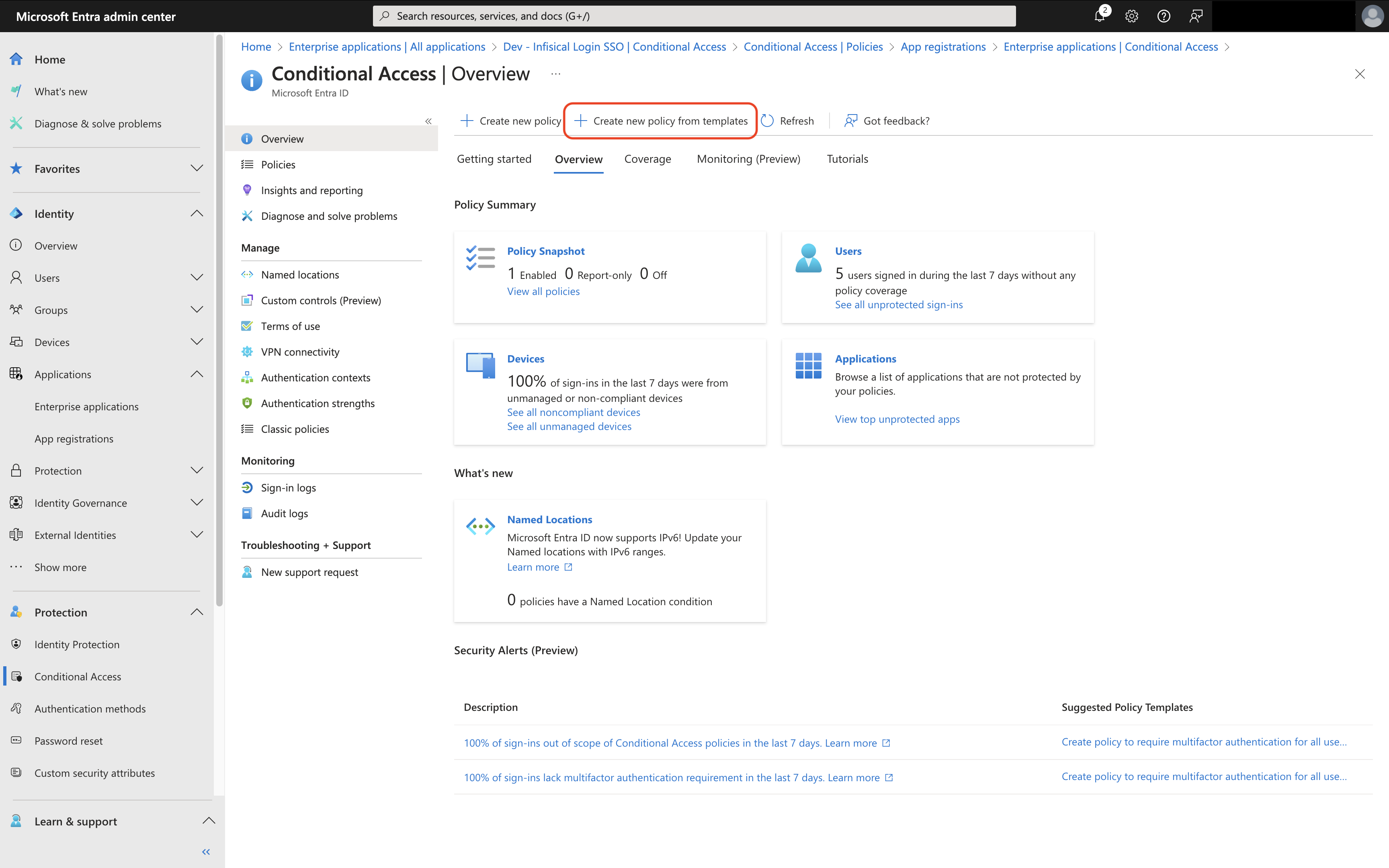
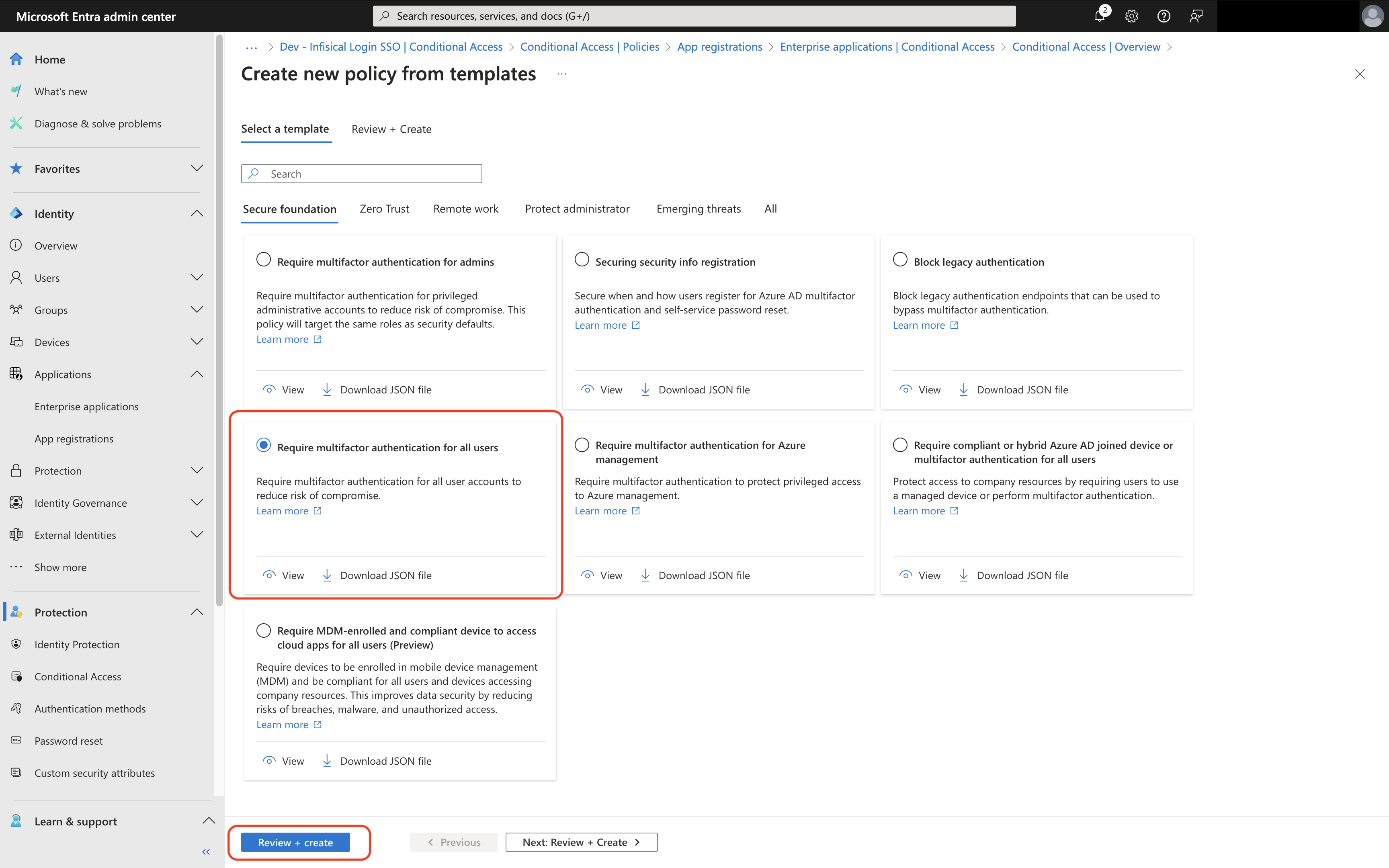
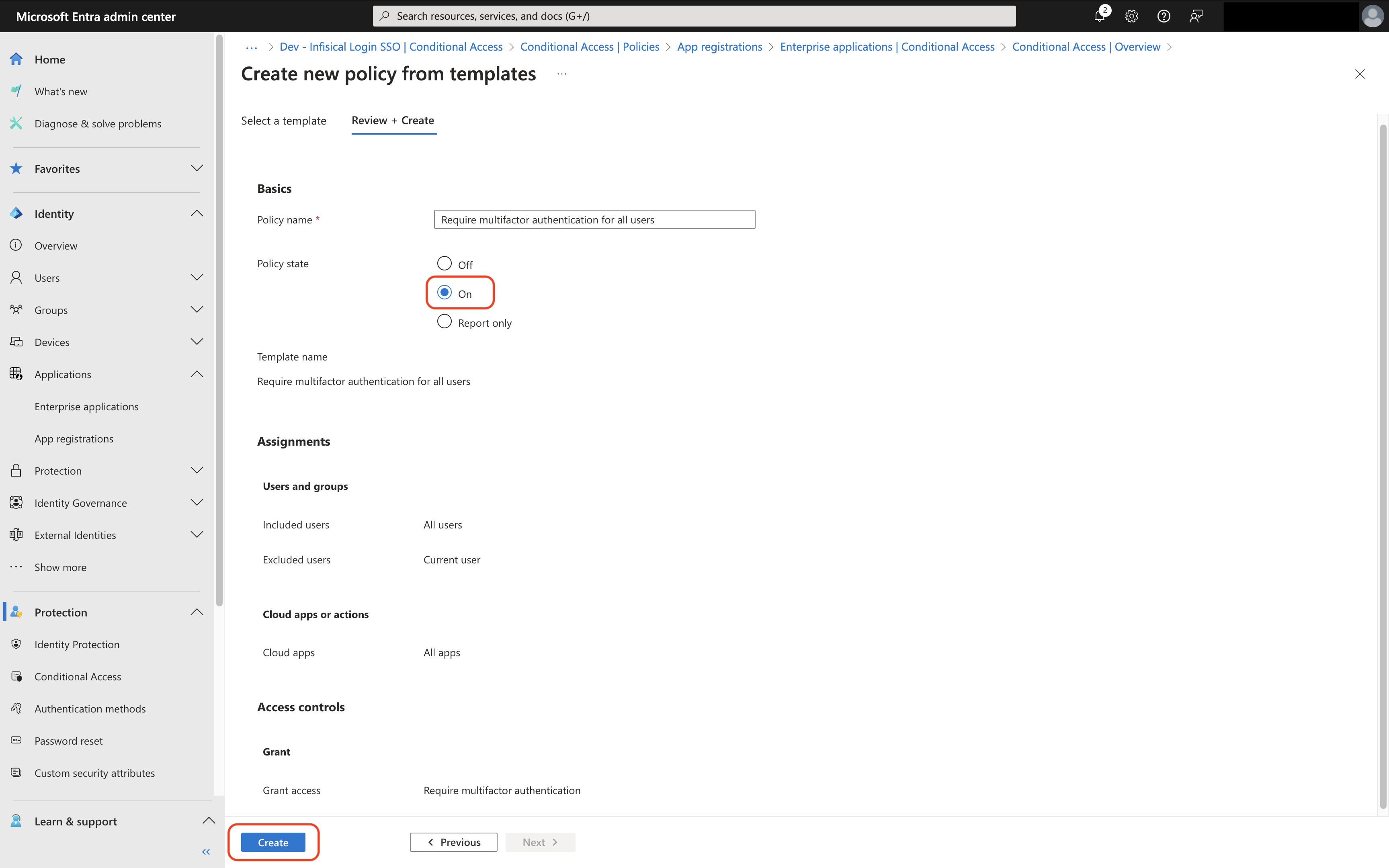
By default all users except the configuring admin will be setup to require MFA.
Microsoft encourages keeping at least one admin excluded from MFA to prevent accidental lockout.
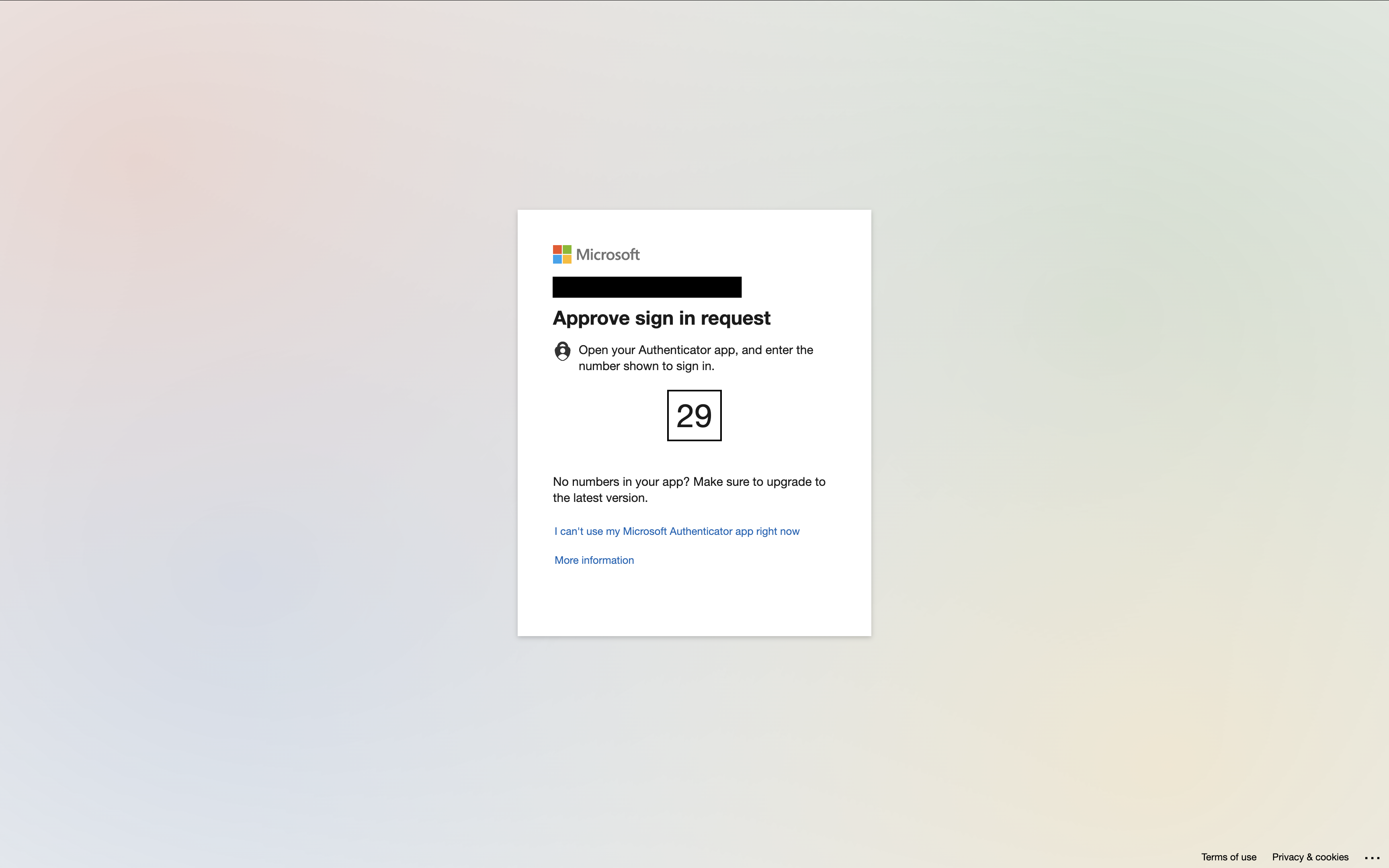
If users have not setup MFA for Entra / Azure they will be prompted to do so at this time.