---
title: "General OIDC"
description: "Learn how to configure OIDC for Infisical SSO with any OIDC-compliant identity provider"
---
OIDC SSO is a paid feature. If you're using Infisical Cloud, then it is
available under the **Pro Tier**. If you're self-hosting Infisical, then you
should contact sales@infisical.com to purchase an enterprise license to use
it.
You can configure your organization in Infisical to have members authenticate with the platform through identity providers via [OpenID Connect](https://openid.net/specs/openid-connect-core-1_0.html).
Prerequisites:
- The identity provider (Okta, Google, Azure AD, etc.) should support OIDC.
- Users in the IdP should have a configured `email` and `given_name`.
1.1. Register your application with the IdP to obtain a **Client ID** and **Client Secret**. These credentials are used by Infisical to authenticate with your IdP.
1.2. Configure **Redirect URL** to be `https://app.infisical.com/api/v1/sso/oidc/callback`. If you're self-hosting Infisical, replace the domain with your own.
1.3. Configure the scopes needed by Infisical (email, profile, openid) and ensure that they are mapped to the ID token claims.
1.4. Access the IdP’s OIDC discovery document (usually located at `https:///.well-known/openid-configuration`). This document contains important endpoints such as authorization, token, userinfo, and keys.
2.1. Back in Infisical, in the Organization settings > Security > OIDC, click Manage
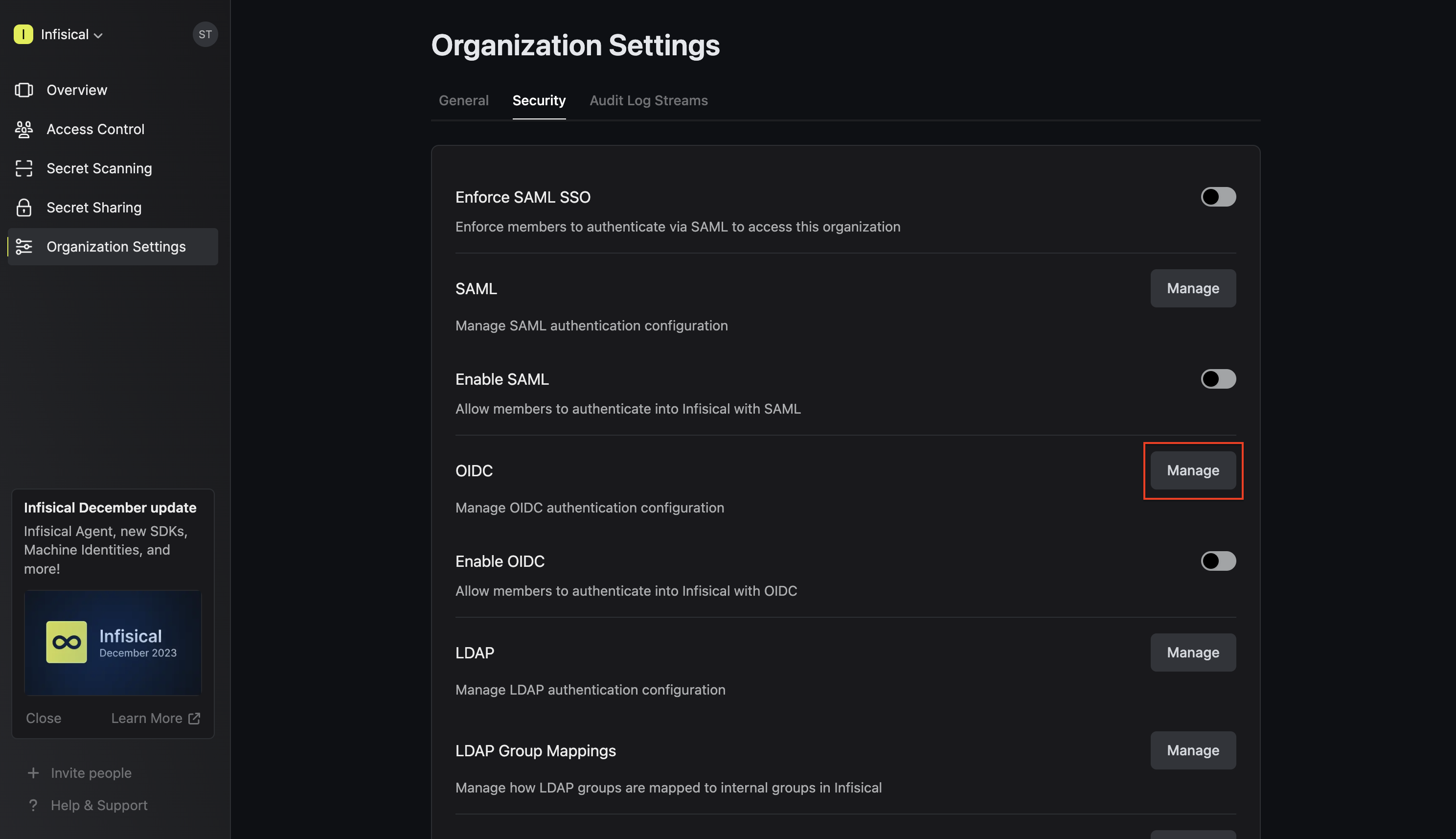
2.2. You can configure OIDC either through the Discovery URL (Recommended) or by inputting custom endpoints.
To configure OIDC via Discovery URL, set the **Configuration Type** field to **Discovery URL** and fill out the **Discovery Document URL** field.
Note that the Discovery Document URL typically takes the form: `https:///.well-known/openid-configuration`.
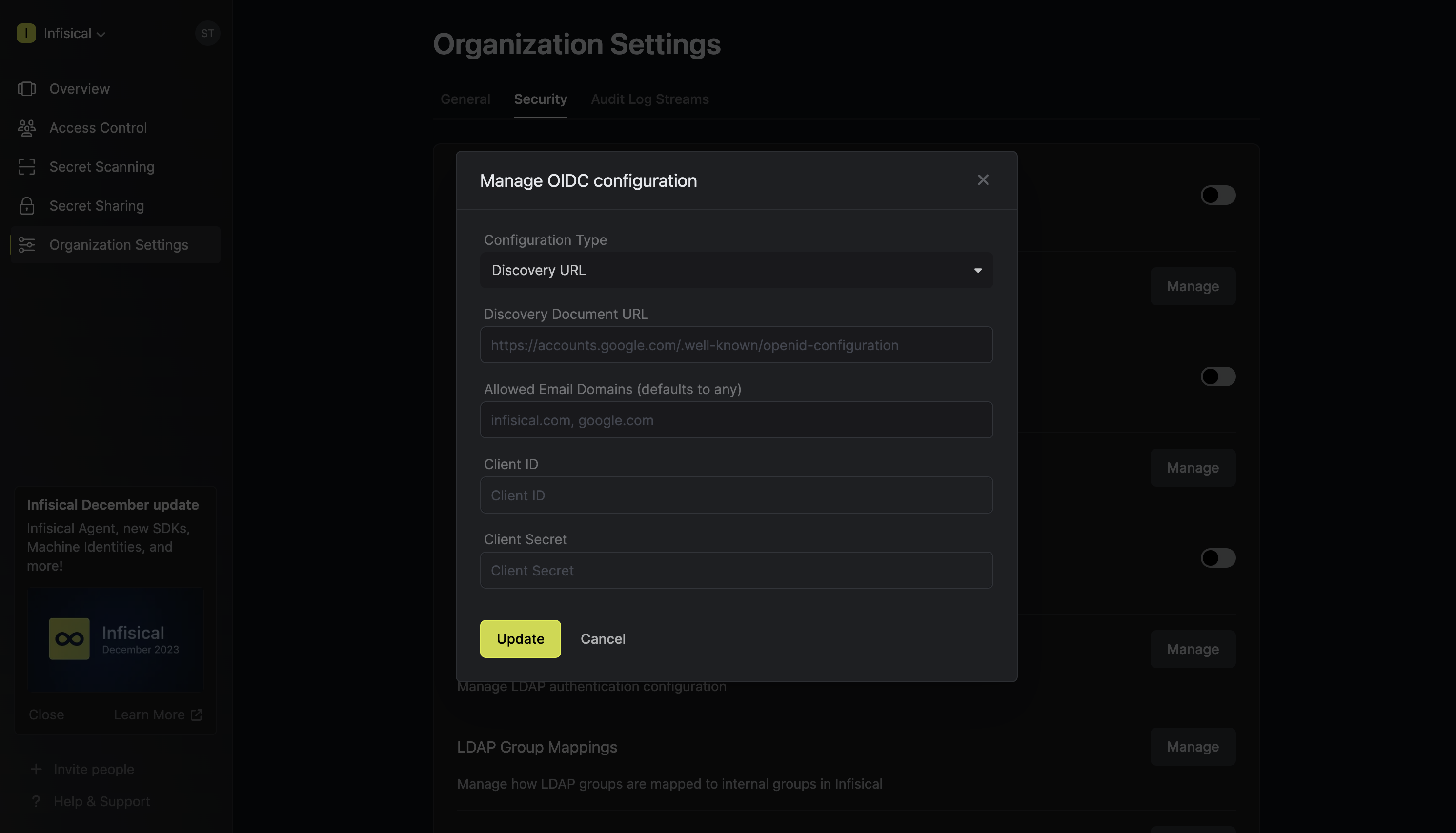
To configure OIDC via the custom endpoints, set the **Configuration Type** field to **Custom** and input the required endpoint fields.
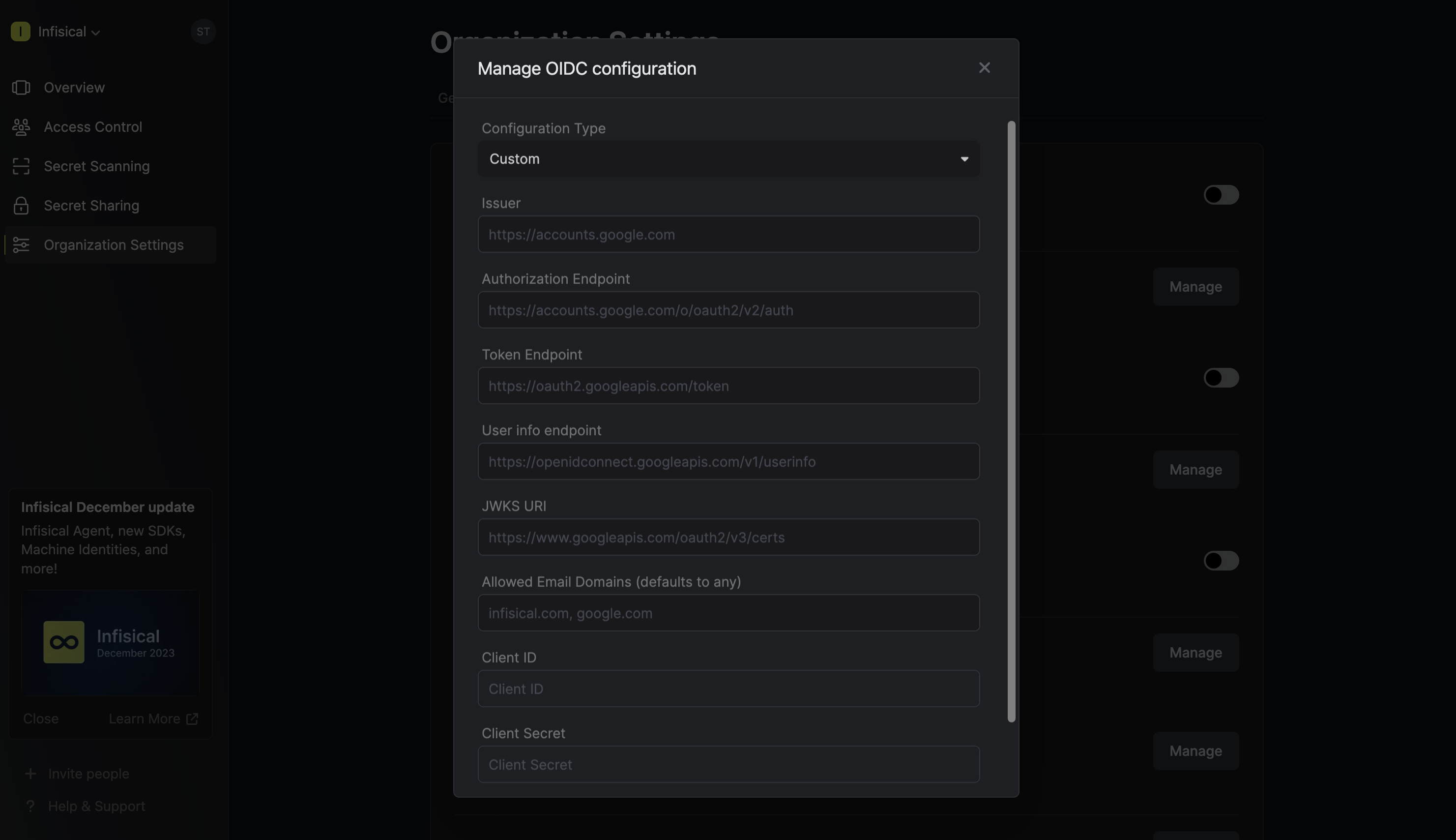
2.3. Optionally, you can define a whitelist of allowed email domains.
Finally, fill out the **Client ID** and **Client Secret** fields and press **Update** to complete the required configuration.
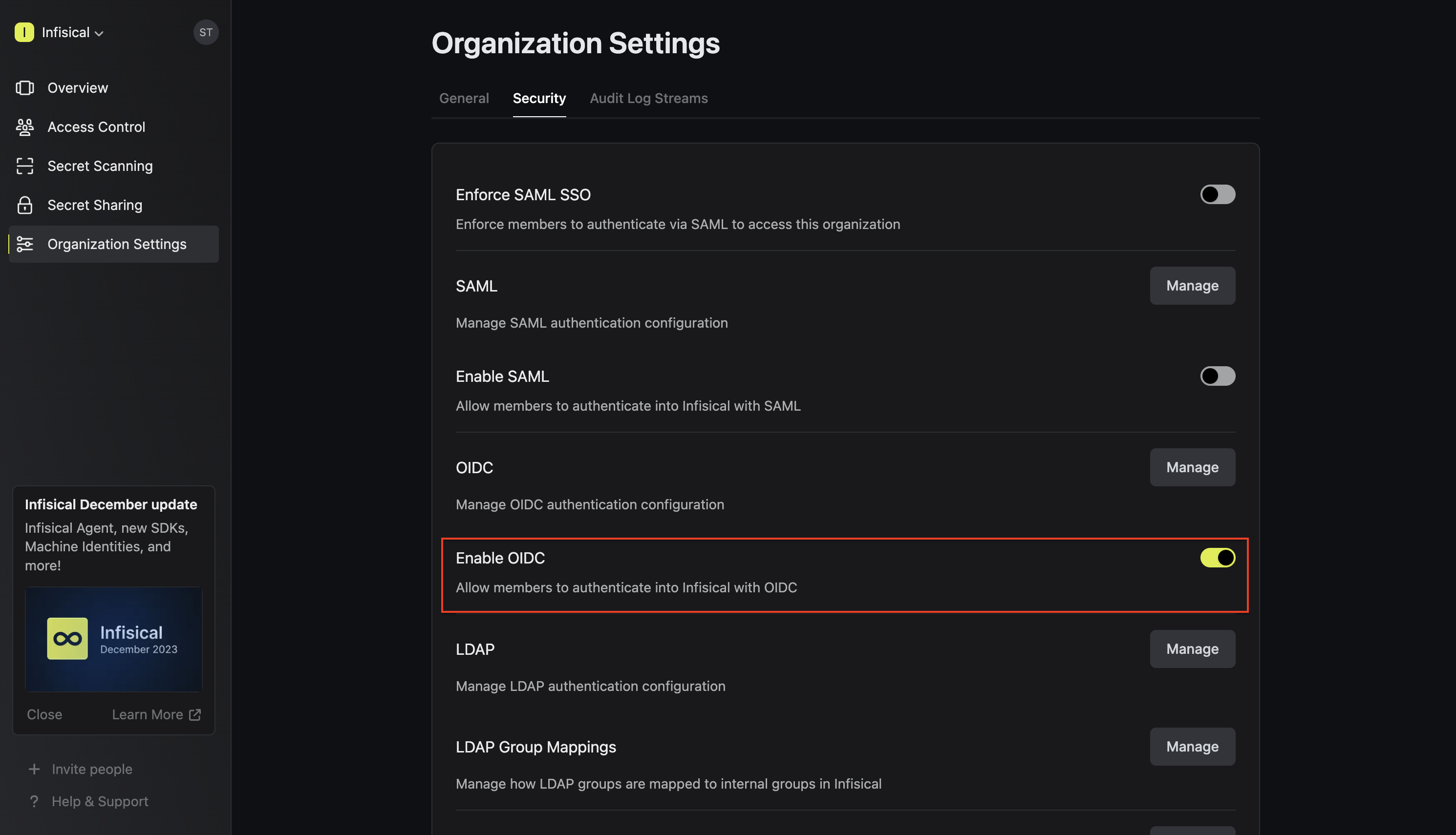
Enabling OIDC SSO allows members in your organization to log into Infisical via the configured Identity Provider
If you're configuring OIDC SSO on a self-hosted instance of Infisical, make
sure to set the `AUTH_SECRET` and `SITE_URL` environment variable for it to
work: - `AUTH_SECRET`: A secret key used for signing and verifying JWT. This
can be a random 32-byte base64 string generated with `openssl rand -base64
32`. - `SITE_URL`: The URL of your self-hosted instance of Infisical - should
be an absolute URL including the protocol (e.g. https://app.infisical.com)